Thursday, 24 February 2022

[Resolved:] Set value of the picklist field for the selected records to mass update in lightning web component.

SCENARIO 

While working on one of the requirements for a manufacturing sector solutions customer based out in Dallas, Texas there was a requirement to set selected value of picklist field to mass update of records in lightning web component.

CHALLENGE 

We have achieved this functionality of setting the value of picklist by creating  custom lightning web component. We have used custom javascript functions to update mass records. 

However, we got stuck with the issue of updating records for the selected value. 

APPROACH

To fulfill this requirement,we decided to create custom javascript functions to select multiple files and to assign values to each files. 

Below is a sample code for reference.

HTML Code:-

    <template>
      <lightning-card title="Account List"> 
        <div class="slds-m-around_medium" >

        
        <div class='slds-grid slds-gutters'>
          <div class='slds-col'>
            <lightning-input type="checkbox" onchange={handleSelectAllIndustryChk}
                             label="Select All" data-id="selectAllIndustry">
          </lightning-input>

          </div>
         </div>
         <template for:each={accounts} for:item="account" for:index="index">
          <div class='slds-grid slds-gutters' key={account.Name}>
            <div class='slds-col slds-m-top_large slds-size_1-of-7'>
              <lightning-input type="checkbox" name={account.Name} data-class="cus_IndustryHelper"
              onchange={handleIndustryCheckbox} data-id='IndustryTypeChk'>
              </lightning-input>
              </div>
              <div class='slds-col slds-size_3-of-7'>
                <lightning-input label="Account Name" type="text" value={account.Name}
                                  disabled="true">
                </lightning-input>
              </div>
              <div class='slds-col slds-size_3-of-7'>
                <lightning-combobox name={account.Name} label="Industry" data-id={account.Name}
                                    class="picklistContent"  dropdown-alignment="auto"
                                    placeholder="Select account Type" options={IndustryPicklist.data.values}
                                    onchange={handleIndustrySelectionChange} required>
                </lightning-combobox>
              </div>
          </div>
        </template>
      </div>
      </lightning-card>  
    </template>    
  

JavaScript Code:-

import { LightningElement, api, wire, track } from 'lwc';
import AccountList from '@salesforce/apex/AccountController.AccountList';
import { getPicklistValues } from 'lightning/uiObjectInfoApi';
import { getObjectInfo } from 'lightning/uiObjectInfoApi';
import Account_OBJECT from '@salesforce/schema/Account';
import Industry_FIELD from '@salesforce/schema/Account.Industry';
   
export default class DataTableInLwc extends LightningElement {
    
    @track accounts=[];
    @track selectedIndustryValues=[];


  @wire(AccountList)
  wiredfiles(result){
      
      if(result.data){
          this.accounts=result.data;
          
      }
      else{
          console.log('Data not found');
      }
    }


    @wire(getObjectInfo, { objectApiName: Account_OBJECT })

    AccountMetadata;

    @wire(getPicklistValues,

        {

            recordTypeId: '$AccountMetadata.data.defaultRecordTypeId',

            fieldApiName: Industry_FIELD

        }

    )

    IndustryPicklist;


    handleSelectAllIndustryChk(event) {
    this.selectedIndustryValues = [];
    var checkboxes = this.template.querySelectorAll('[data-id="IndustryTypeChk"]');
    for (var i = 0; i < checkboxes.length; i++) {
        checkboxes[i].checked = event.target.checked;
        event.target.checked ? this.selectedIndustryValues.push(checkboxes[i].name) : '';
        }
    }

        
        handleIndustryCheckbox(event) {
            if (event.target.checked) {
                this.selectedIndustryValues.push(event.target.name);
                let checkboxes = this.template.querySelectorAll('[data-class="cus_IndustryHelper"]');
                let length = 0;
                for (var i = 0; i < checkboxes.length; i++) {
                    (checkboxes[i].checked == true) ? length = length + 1: length = length - 1;
                }
                ((checkboxes.length) == length) ? this.template.querySelectorAll('[data-id="selectAllIndustry"]')[0].checked = true: this.template.querySelectorAll('[data-id="selectAllIndustry"]')[0].checked = false;
            } else {
                this.selectedIndustryValues.splice(this.selectedIndustryValues.indexOf(event.target.name), 1);
                this.template.querySelectorAll('[data-id="selectAllIndustry"]')[0].checked = false;
                length -= 1;
            }
        }
            
        handleIndustrySelectionChange(event)
        {
            if (this.selectedIndustryValues.indexOf(event.target.name) != -1) {
                for (var i = 0; i < this.selectedIndustryValues.length; i++) {
                var selected = this.template.querySelectorAll('[data-id="' + this.selectedIndustryValues[i] + '"]')[0];
                selected.value = event.target.value;
                   }
                }
        }


}  


  • handleSelectAllIndustryChk:- By clicking select all checkbox it will check all the checkboxes.
  • handleIndustryCheckbox:- Checks for checkboxes to see whether it is selected or
    
    unselected.
  • handleIndustrySelectionChange:- Used when value is selected from the picklist 
    
    and assigns that value to each and every selected picklist.

Apex Class:-

public with sharing class AccountController {
    @AuraEnabled(cacheable=true)
    public static List<Account> AccountList() {
        return [SELECT Id, Name ,Industry FROM Account LIMIT 5 ];
    }
}

OUTPUT:-


CONCLUSION
 
By using above mentioned javascript functions, We are able to set selected value of picklist field based for bulk/mass update records in lightning web component.

If you have any questions you can reach out our Salesforce Consulting team here.

Thursday, 3 February 2022

Retrieve Custom Metadata Type Records Using Static Methods

With salesforce Spring21 release , there is no need to write a Salesforce Object Query Language (SOQL) to access Custom Metadata Type in Apex. Salesforce introduces new methods as similar to accessing custom settings. 

Before Spring21 release, To access Custom Metadata Type Record only using SOQL in Apex like below,

// Before Spring 21
List<Country_Code__mdt> listCountryCode = [SELECT Id,Label,MasterLabel,Country_Code__c,DeveloperName from Country_Code__mdt];
      
for(Country_Code__mdt c : listCountryCode){
           System.debug('Label ->'+ c.Label + ',' + 'Country code ->' + c.Country_Code__c + ',' +'Devloper name ->' + c.DeveloperName);
      }
/* OUTPUT
 * Label -> CANADA,Country code ->CAN,Devloper name ->CANADA
 * Label -> INDIA,Country code ->IND,Devloper name ->INDIA
 * Label -> UNITED STATES,Country code ->UNS,Devloper name ->UNITED STATES
*/

Salesforce spring21 release provides an option to access Custom Metadata Type record using static methods without SQOL.

Using Apex getAll(), getInstance(recordId), getInstance (qualifiedApiName), and getInstance(developerName) methods are used to retrieve information from custom metadata type records faster. These methods don’t rely on the SOQL engine and return the sObject details directly by the call. Below are few benefits of these methods.
  • It removes need of Salesforce Object Query Language (SOQL).
  • Eliminate any SOQL limits.
  • Build the code cleaner and faster.
Let's see all methods with example.
  • getAll()
It returns a map containing custom metadata records for the specific custom metadata type. The map's keys are the Record ID and the map’s values are the sObjects record.

List<Country_Code__mdt> listCountryCode = Country_Code__mdt.getAll().values();
      
for(Country_Code__mdt c : listCountryCode){
           System.debug('Label ->'+ c.Label + ',' + 'Country code ->' + c.Country_Code__c + ',' +'Devloper name ->' + c.DeveloperName);
      }
/* OUTPUT
 * Label -> CANADA,Country code ->CAN,Devloper name ->CANADA
 * Label -> INDIA,Country code ->IND,Devloper name ->INDIA
 * Label -> UNITED STATES,Country code ->UNS,Devloper name ->UNITED STATES
*/
  • getInstance(recordId)
It returns a single custom metadata type sObject record for a specified record ID.

Country_Code__mdt CountryCodeRecord = Country_Code__mdt.getInstance('m022w000000lPl8AAE');
System.debug('Label ->'+ CountryCodeRecord.Label + ',' + 'Country code ->' + CountryCodeRecord.Country_Code__c);
/*OUTPUT
 * Label ->CANADA,Country code ->CAN
*/
  • getInstance(developerName)
It returns a single custom metadata type sObject record for a specified developerName field of the custom metadata type object.

Country_Code__mdt CountryCodeRecord = Country_Code__mdt.getInstance('CANADA');
System.debug('Developer Name ->'+ CountryCodeRecord.DeveloperName + ',' + 'Country code ->' + CountryCodeRecord.Country_Code__c);
/*OUTPUT
 * Developer Name->CANADA,Country code ->CAN
*/
  • getInstance(qualifiedApiName)
It returns a single custom metadata type sObject record for a qualified API name specified as parameter.

Country_Code__mdt CountryCodeRecord = Country_Code__mdt.getInstance('INDIA');
System.debug('Label ->'+ CountryCodeRecord.Label + ',' + 'Country code ->' + CountryCodeRecord.Country_Code__c);
/*OUTPUT
 * Label->INDIA,Country code ->IND
*/
 

If you have any questions you can reach out our Salesforce Consulting team here.

Thursday, 6 January 2022

[Resolved:] Set default value to dependent picklist based on the value selected on controlling picklist in VF page

SCENARIO 

While working on one of the requirements for a health sector solutions customer based out Atlanta, Georgia there was a requirement to assign default value to particular dependent picklist field based on value selected on controlling picklist field in VF page.

 
CHALLENGE 

Although, We can achieve the requirement by making the field mandatory on page layout but  the client doesn't want that field to be required. So we have made custom JS to set default value to dependent picklist based on controlling picklist field value in the VF page.


RESOLUTION 

To fulfil the requirement, we have used <apex:actionFuntion> tag of visualforce page. By using this tag, we can call apex controller method from Javascript code  using  an  AJAX  request.   

Below is a sample code for reference. Here, we get the value of controlling picklist field and calling apex class using <apex:actionFunction>. 

ActionFunctionVFPage.vfp
<apex:page controller="retrieveValue">
    <script>
    function changefield(regionValue){
        
        var r =document.getElementById(regionValue);
        
        if(regionValue == "India"){            
            rerendAction();
        }
    }
    </script>
    <apex:form >
        <apex:sectionHeader title="Account" subtitle="Region Picklist Value"/>
        <apex:actionFunction action="{!zoneValue}" name="rerendAction" rerender="zone"/>
        <apex:pageblock id="pageRender">
            
            <apex:pageblocksection >
                
                <apex:pageblocksectionitem >
                    
                    <apex:outputlabel value="Region"/>
                    
                    <apex:inputField value="{!acc.Region__c}" onchange="changefield(this.value)"/>
                </apex:pageblocksectionitem>
                
            </apex:pageblocksection>
            
            <apex:pageblocksection id="zonefield">
                
                <apex:pageblocksectionitem >
                    <apex:outputlabel value="Zone"/>
                    <apex:inputField value="{!acc.Zone__c}" id="zone"/>
                    
                </apex:pageblocksectionitem>
                
            </apex:pageblocksection>
        </apex:pageblock>
        
    </apex:form>
    
</apex:page>

ActionFunctionController.apxc
global class retrieveValue {
    public Account acc{get;set;}
    public retrieveValue(){
        acc=new Account();
    }
  
    public void zoneValue()
    {
         acc.Zone__c = 'West_Zone';
    }
    
}

In apex class, we are setting default values to dependent picklist and action function will reRender the dependent picklist field.
                           
Output


CONCLUSION 

By Using custom JS and <apex:actionFuntion> , we are able to set default value to dependent picklist field based on value selected on controlling picklist field in VF page. 

If you have any questions you can reach out our Salesforce Consulting team here.

Thursday, 30 December 2021

Manipulation on Comma Separated values using Salesforce flow

SCENARIO

While working on one of the requirements for a manufacturing solutions customer based out Atlanta, Georgia there was need to automate User Onboarding Process based on the profile they are assigned to. When a user is added through the data loader, need to add that user to a public group (10 possible groups) automatically. Client wants the new user to be assigned to certain public groups based on the profile the new user has.

APPROCAH

We can think of many solutions to achieve the requirement, for example - Trigger, Apex Class etc., but we've decided to go with less coding approach either through Salesforce flow or Process builder to achieve the requirement.

We'd faced bulkification issue in Process builder earlier, we choose to go with salesforce flow to meet this requirement.

CHALLENGE

Based on the approach taken, we lead to a situation for having multiple groups assignment for user and comma separated public group Ids.

We have used custom metadata for required configuration.

We were able to get list of IDs (Collection of Ids) which are stored in a text field of custom metadata. We can use the same in our Salesforce Flow further execution.

Example:- 
Input String :- 00G2x000000X1GPEA0, 00G2x000000X1GUEA0, 00G2x000000X1GZEA0
Output String Collection:-  00G2x000000X1GPEA0
                                    00G2x000000X1GUEA0
                                    00G2x000000X1GZEA0
                                    
In the above example, comma-separated input string is 00G2x000000X1GPEA0, 00G2x000000X1GUEA0, 00G2x000000X1GZEA0 and output is an Array List - string collection. 

Below are the steps to get a List of Ids from a comma-separated string of Ids.

Step 1:-  Define flow properties.
  • Click Setup.
  • In the Quick Find box, type Flows.
  • Select Flows then click on the New Flow.
  • Select the Autolaunched Flow (No Trigger) option and click on Next and configure the flow as follows:
    • How do you want to start building: Freeform

Step 2:- Flow variables and formulas.
In this step, we will define variables and formulas.

Define InputString Text variable to store entered string.
  • Under Toolbox, select Manager, click on New Resource.
  • Input following information,
    • Resource Type - Variable
    • API Name - InputString
    • Data Type - Text
    • Allow multiple values (collection) - Uncheck 
  • Click Done.
InputString variable
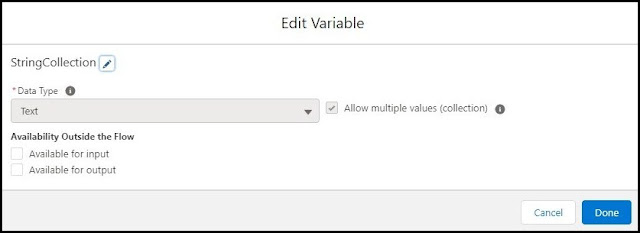
Define StringCollection Text variable to store separated string.
  • Under Toolbox, select Manager, click on New Resource.
  • Input following information,
    • Resource Type - Variable
    • API Name - StringCollection
    • Data Type - Text
    • Allow multiple values (collection) - check 
  • Click Done.

StringCollection variable

Define GetFirstElementFromString  Formula to Get the first element from InputString.
  • Under Toolbox, select Manager, click on New Resource.
  • Input following information,
    • Resource Type - Formula
    • API Name - GetFirstElementFromString  
    • Data Type - Text
    • Formula -
TRIM(LEFT({!InputString}, FIND(",",{!InputString} )-1))
  • Click Done.

GetFirstElementFromString Formula
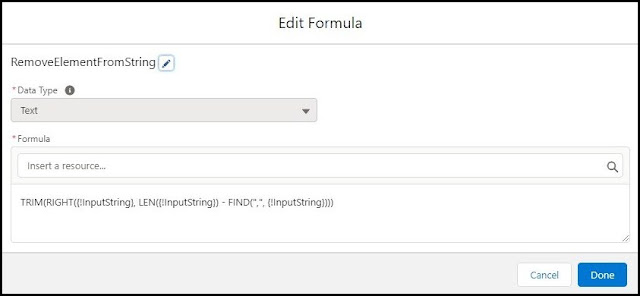
Define RemoveElementFromString formula to remove element from InputString.
  • Under Toolbox, select Manager, click on New Resource.
  • Input following information,
    • Resource Type - Formula
    • API Name - RemoveElementFromString   
    • Data Type - Text
    • Formula - 
TRIM(RIGHT({!InputString}, LEN({!InputString}) - FIND(",", {!InputString})))
  • Click Done.
RemoveElementFromString Formula

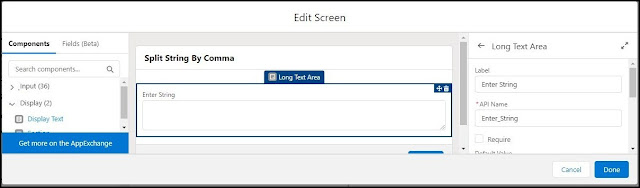
Step 3:-  Create Screen Element
In this step, we will create screen element to get the InputString.
  • Under Toolbox, select Elements. Drag and drop Screen onto the canvas.
  • Fill following Information on Screen Properties.
    • Enter Label the API Name will auto-populate.
    • Under Components, select Input, Drag and drop Long Text Area onto the screen. fill the following details on Long Text Area.
      • Label - Enter String
      • API Name - Enter_String
  • Click Done.
  • Connect Start to Screen Element.

Screen Element

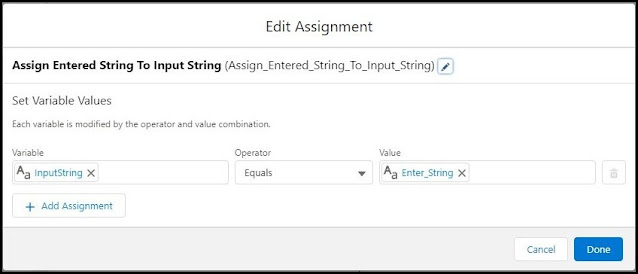
Step 4:- Create Assignment Element.
In this step, we will assign Entered string to InputString.
  • Under Toolbox, select Elements. Drag and drop Assignment onto the canvas.
  • Fill as below,
    • Enter Label and API Name will auto-populate.
    • Set variable values as follow.
      • Variable - InputString
      • Operator - Equals
      • Value - Enter_String
    • Click Done.
  • Connect screen element to assignment element.          

Assign Enter string to Input String

Step 5:- Create Decision Element
In this step, we will check InputString is null or InputString has one string or InputString has multiple strings separated by a comma.
  • Under Toolbox, select Elements. Drag and drop Decision onto the canvas.
  • OutComes
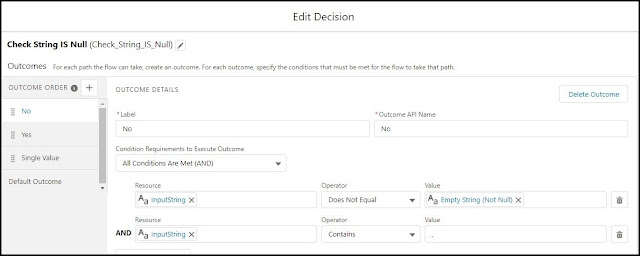
    • No (If InputString contains multiple strings)
      • Enter Label as No Outcome API Name will auto-populate.
      • Condition Requirements to Execute Outcome - All Conditions Are Met (AND)
      • Row 1 
        • Resource - InputString
        • Operator - Does Not Equal
        • Value - Empty String (Not Null)
      • Row 2
        • Resource - InputString
        • Operator - Contains
        • Value - ,
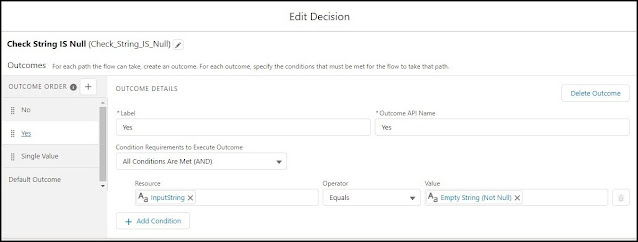
    • Yes (If inputString is null/empty)
      • Enter Label as Yes Outcome API Name will auto-populate.
      • Condition Requirements to Execute Outcome - All Conditions Are Met (AND)
      • Row 1 
        • Resource - InputString
        • Operator - Equals
        • Value - Empty String (Not Null)
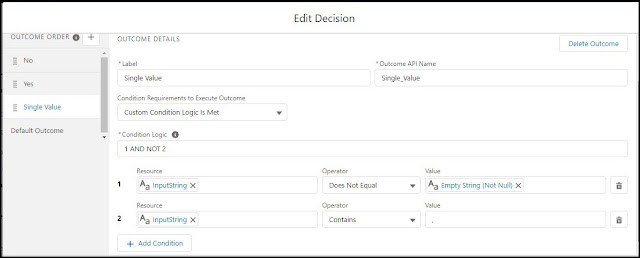
    • Single Value (If InputString has a single string)
      • Enter Label as Single Value Outcome API Name will auto-populate.
      • Condition Requirements to Execute Outcome - Custom Condition Logic Is Met
      • Condition Logic - 1 AND NOT 2 
      • Row 1 
        • Resource - InputString
        • Operator - Does Not Equal
        • Value - Empty String (Not Null)
      • Row 2
        • Resource - InputString
        • Operator - Contains
        • Value - ,
  • Click Done.
  • Connect assignment element to decision element. 
Decision element No as outcome

Decision element Yes as outcome

Decision element Single Value as outcome

Step 6:- Create Assignment Element
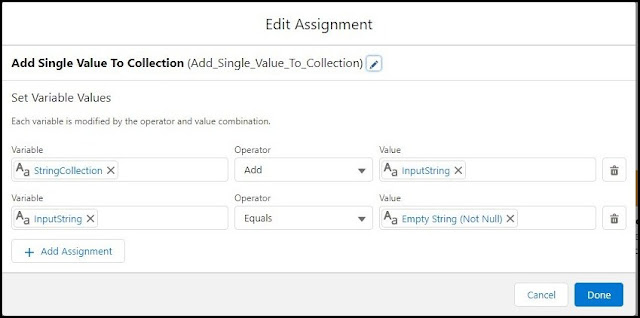
In this step, we will add InputString in StrinCollection and assign InputString as empty for Single Value outcome of the decision.
  • Under Toolbox, select Elements. Drag and drop Assignment onto the canvas.
  • Enter Label and API Name will auto-populate.
  • Set Variable Values as below.
    • Row 1
      • Variable - StringCollection
      • Operator - Add
      • Value - InputString
    • Row 2
      • Variable - InputString
      • Operator - Equals
      • Value - Empty String (Not Null)
  • Click Done.
  • Connect decision element to assignment element for Single Value outcome.
  • Connect back assignment element to decision element.
Assignment Add Single Value To Collection

Step 7:- Create Assignment Element
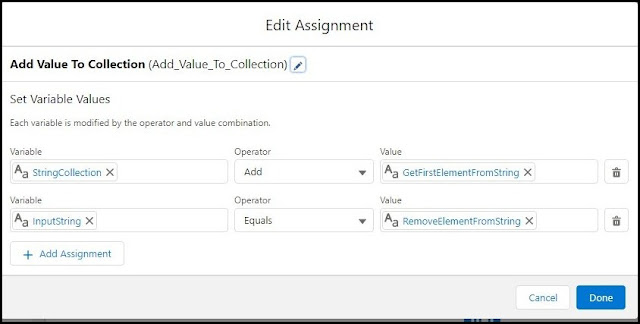
In this step, we will add the first element from InputString to StringCollection and remove that element to InputString for No outcome of decision.
  • Under Toolbox, select Elements. Drag and drop Assignment onto the canvas.
  • Enter Label and API Name will auto-populate.
  • Set Variable Values as below.
    • Row 1
      • Variable - StringCollection
      • Operator - Add
      • Value - GetFirstElementFromString
    • Row 2
      • Variable - InputString
      • Operator - Equals
      • Value - RemoveElementFromString
  • Click Done.
  • Connect decision element to assignment element for No outcome.
  • Connect back assignment element to decision element.
Assignment Add value to Collection

Step 8:- Create Screen Element
In this step, we will create a screen to see output.
  • Under Toolbox, select Elements. Drag and drop Screen onto the canvas.
  • Fill following Information on Screen Properties.
    • Enter Label the API Name will auto-populate.
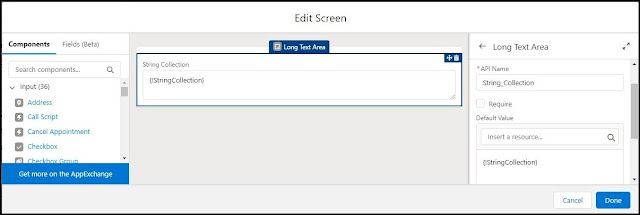
    • under Components, select Input, Drag and drop Long Text Area onto the screen. fill the following details on Long Text Area.
      • Label - String Collection
      • API Name - String_Collection
      • Default Value - {!StringCollection}
  • Click Done.
  • Connect decision element to screen element for Yes outcome.

Screen Element output StringCollection


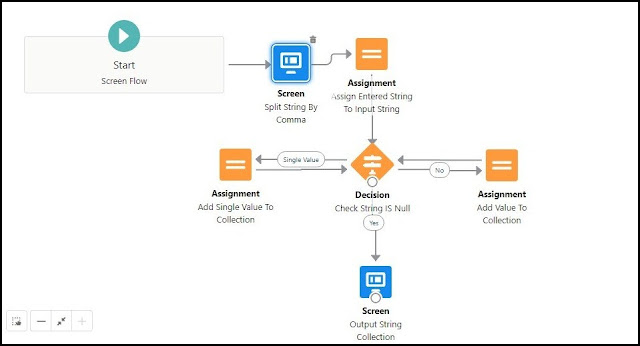
Flow:- 
Flow diagram

Flow output:-

If you have any questions you can reach out our Salesforce Consulting team here.

Thursday, 2 December 2021

Salesforce : Refreshing A Sandbox

WHAT IS SANDBOX?

Sandbox is the testing environment for your production environment. You can create different types of sandbox environments, or different copies of the same type to fulfill different purposes, such as development, testing, training, or UAT.


The Sandbox environment is isolated from the production environment. So, you can test as per need without affecting the production environment.


Salesforce provides 4 types of sandbox.

 1. Developer Sandbox
 2. Developer Pro Sandbox
 3. Partial Copy Sandbox
 4. Full Sandbox


WHY WE NEED TO REFRESH SANDBOX?
It is important to have accurate data while testing, development and training because its gives us confidence that configuration or code will not break the production environment. So, sandbox environment should be the mirror of the production environment as closely as possible.

The Salesforce Development Lifecycle Guide recommends that we should refresh/update our sandboxes on a regular basis to ensure that they have the most up-to-date setup and data.

WHAT IS SANDBOX REFRESH?

Refreshing a sandbox means updating all sandbox’s metadata from source org. If the sandbox is a clone or contains a template, the refresh process updates the org’s data and its metadata.

SANDBOX REFRESH PROCESS

At the time of refreshing, the salesforce creates a new org that contains all the objects, fields, validation rules, page layouts, record types, users, and so on as source org.

The sandbox based on template, partial copy, and full copies get some/all data from a source. Here, data refers to records.

SANDBOX REFRESH BEST PRACTICE

Refresh process builds all configuration like source org and remove current org configuration. As the current configuration will be lost, we need to make sure to have pre and post action document that we can compile and revert it after refresh if any issue arises.

In the document, you can include the below points. 
  • Scheduled jobs
  • Deliverability
  • Named Credentials
  • Custom Settings
  • Custom Metadata Types 
  • Remote Site Settings
  • Managed package configurations
  • Connected Apps
  • Apex Exception Email
  • Hardcoded values both in Apex and declarative tools
  • User credentials used in the integrations
  • Salesforce apps and their configurations
After the completion of refresh, we can compare and revert it back from the document.

If you have any questions you can reach out our Salesforce Consulting team here.