Showing posts with label flow. Show all posts

Thursday, 27 July 2023

Enhancing Record Processing: Automating Bulk Operation with Salesforce Flow from List Views

Requirement:

In an E-commerce sector project, the client based in Georgia, USA was required to implement bulk operation(To update multiple records simultaneously) from a list view button using salesforce flow.

Challenge:

As we do not have to use the apex class for this requirement, our main challenge was passing all the selected record Ids from the sObject's list view to the salesforce flow.

Solution:


Concisely, To achieve this follow the below steps:
  • Creating a screen flow with a variable named "ids" for delete operation.
  • Creating a List button with a custom URL.


  • To Create Screen Flow:
  • Go to the setupQuick Find search box ⇒ Flows.  
  • After that click on New Flow and then select Screen Flow.
  • To create a collection variable go to the toolbox and click on New Resource button.
  • Select Variable as Record Type and Enter values as in below image.


[Note: API Name of the variable must be "ids".] 

  •  After that create a variable for record count to assign the count of the ids. 


  •  Add Decision Element and enter values as below.


  •  Add Delete Record element for Available outcome and add Screen element for Not Available outcome to display Error message. 


  • After Delete Record element add Screen element for success message.
  • Have a look on below image for flow reference.


  • To create a List Button with a custom URL:
  • Go to the Object Manager and open sObject(here it is Account) then click on "Buttons, Links and Actions" Tab.
  • Then click on "Create Button or Link" button and enter values as below in image and click on save button.


  • Here the custom URL "/flow/Delete_bulk_records?retURL=001/o" includes API Name of flow i.e. Delete_bulk_records and retURL=001/o to return to the Accounts List View page.
  • The value of retURL 001/o includes "001" is from first three character of record Id of Account sObject and "o" to redirect to the list view page.
  • After creating List Button click on List View Button Layout to add the List Button in List View Layout.
  • Edit the List view Layout, Scrolldown the cursor to the Custom Button and Add the created List Button in the Selected button list and save the changes. 


Output: 


Conclusion:

This is how the Automating Bulk Operation with Salesforce Flow from List Views is implemented which allows you to update multiple records simultaneously, saving time and effort.


If you have any questions you can reach out our Salesforce Consulting team here.

Thursday, 14 April 2022

Lightning Web Component in Flows

Lightning Flow Builder is one of the powerful automation tools available in Salesforce which gets the work done without a single line of code.

In Lightning Flow Builder, you can accomplish almost anything like creating records, updating records, sending emails, triggering approval processes, connecting to an external system, and from winter 20 release, Lightning Web Components can be incorporated into Flow.

Lightning Web Components in Flow: Why to use them
Lighting Web Components in Flow provides a better User experience and also accomplishes many tasks that flow cannot be accomplished alone.

Adding Lightning Web Components to Flows
To add Lightning Web Components available for Flow screens, add a target to the targets tag in the component’s Meta XML file.

 1
 2
 3
 4
 5
 6
 7
 8
 9
10
11
12
13
<?xml version="1.0" encoding="UTF-8"?>
<LightningComponentBundle xmlns="http://soap.sforce.com/2006/04/metadata">
    <apiVersion>52.0</apiVersion>
    <isExposed>true</isExposed>

    <targets>
        <target>lightning__FlowScreen</target>
        <target>lightning__AppPage</target>
        <target>lightning__RecordPage</target>
        <target>lightning__HomePage</target>
    </targets>
        
</LightningComponentBundle>

By adding the above tags, the Lightning Web Component becomes available for flow screens.

Let's have a look at the example, A flow that displays a list of account with Lightning Design, select the accounts, and display the selected account Ids.

Wait a while!. How would the Flow knows which accounts are selected in the Lightning component ?, Is there any mechanism to communicate between LWC and Flows? We must declare the properties that can communicate between LWC and Flow. Since we have Targets, we also have Target Configs. To look more at the Configuration tag in Salesforce Documentation.

Let's Jump into the Lightning Web Component Code.

Lightning Web Component

lwcFlow.html
 1
 2
 3
 4
 5
 6
 7
 8
 9
10
11
12
13
14
15
16
17
18
19
20
21
22
23
24
25
26
27
28
29
30
31
32
33
34
35
36
37
38
39
40
41
42
43
44
<template>
    <lightning-card title="Accounts List" icon-name="standard:account">
        <div class="slds-p-around_x-small">
            <table class="slds-table slds-table_cell-buffer slds-table_bordered">
                <thead>
                    <tr class="slds-line-height_reset">
                        <th class="" scope="col">
                            <div class="slds-truncate" title="Edit">Select</div>
                        </th>
                        <th class="" scope="col">
                            <div class="slds-truncate" title="Account Name">Account Name</div>
                        </th>
                        <th class="" scope="col">
                            <div class="slds-truncate" title="Industry">Industry</div>
                        </th>
                        <th class="" scope="col">
                            <div class="slds-truncate" title="Phone">Phone</div>
                        </th>                        
                    </tr>
                </thead>
                <tbody>
                    <template for:each={accs} for:item="acc"> 
                        <tr key={acc.Id} class="slds-hint-parent">
                            <td data-label="Prospecting">
                                <div class="slds-truncate" title="Select">
                                    <lightning-input type="checkbox-button" label="select" variant="label-hidden" onchange={handleCheck} name={acc.Id}></lightning-input>
                                </div>
                            </td>                                
                            <td data-label="Prospecting">
                                <div class="slds-truncate" title="Account Name">{acc.Name}</div>
                            </td>
                            <td data-label="Confidence">
                                <div class="slds-truncate" title="Industry">{acc.Industry}</div>
                            </td>
                            <td data-label="Confidence">
                                <div class="slds-truncate" title="Phone">{acc.Phone}</div>
                            </td>
                        </tr>
                    </template>
                </tbody>
            </table>
        </div>
    </lightning-card>
</template>

lwcFlow.js
 1
 2
 3
 4
 5
 6
 7
 8
 9
10
11
12
13
14
15
16
17
18
19
20
21
22
import { LightningElement,api } from 'lwc';

export default class LwcFlow extends LightningElement {
    @api selectedAccs = [];
    @api selectedAccsString;
    @api accs = [];

    handleCheck(event) {
        if(!this.selectedAccs.includes(event.currentTarget.name))
            this.selectedAccs.push(event.currentTarget.name);
        else {
            for(let i = 0; i < this.selectedAccs.length; i++) {
                if(event.currentTarget.name === this.selectedAccs[i])
                this.selectedAccs.splice(i, 1);
            }
        }
        
        // eslint-disable-next-line @lwc/lwc/no-api-reassignments
        this.selectedAccsString = JSON.stringify(this.selectedAccs);
        
    }
}
 
lwcFlow.js-meta.xml
 1
 2
 3
 4
 5
 6
 7
 8
 9
10
11
12
13
14
15
16
17
18
19
20
<?xml version="1.0" encoding="UTF-8"?>
<LightningComponentBundle xmlns="http://soap.sforce.com/2006/04/metadata">
    <apiVersion>52.0</apiVersion>
    <isExposed>true</isExposed>

    <targets>
        <target>lightning__FlowScreen</target>
        <target>lightning__AppPage</target>
        <target>lightning__RecordPage</target>
        <target>lightning__HomePage</target>
    </targets>

    <targetConfigs>
        <targetConfig targets="lightning__FlowScreen">
            <property name="accs" type="@salesforce/schema/Account[]" label="Accounts" description="list of Accounts"/>
            <property name="selectedAccs" type="String[]" label="Selected Accounts" description="Selected Account Ids"/>
            <property name="selectedAccsString" type="String" label="Selected Accounts String" description="Selected Account Ids"/>
        </targetConfig>
    </targetConfigs>    
</LightningComponentBundle>

Lightning Web Component looks good. Now, Let's build Screen Flow.

Flow
Step 1:-  Define flow properties.
  • Click Setup.
  • In the Quick Find box, type Flows.
  • Select Flows then click on the New Flow.
  • Select the Screen Flow option and click on Next and configure the flow as follows:
    • How do you want to start building: Freeform
Step 2:- Flow variables
In this step, we will define variables.

Define AccountList  collection to store Account records.
  • Under Toolbox, select Manager, click on New Resource.
  • Input following information,
    • Resource Type - Variable
    • API Name - AccountList
    • Data Type - Record
    • Object - Account
    • Allow multiple values (collection) - Check 
    • Availability Outside the Flow
      • Available for input - Check
      • Available for output - Check
  • Click Done.
AccountList Collection

Define SelectedIds Text variable to store Account Ids as string.
  • Under Toolbox, select Manager, click on New Resource.
  • Input following information,
    • Resource Type - Variable
    • API Name - SelectedIds
    • Data Type - Text
    • Allow multiple values (collection) - Uncheck 
    • Availability Outside the Flow
      • Available for input - UnCheck
      • Available for output - Check
  • Click Done.
SelectedIds Variable

Step 3:-  Create Get Records Element
In this step, we will create Get Records Element to get Account records.
  • Under Toolbox, select Elements. Drag and drop onto Get Records Element the canvas.
  • Fill following Information.
    • Enter Label the API Name will auto-populate.
    • Object - Account
    • Filter Account Records
      •  Condition Requirements -All Conditions Are Met (AND)
      • Industry Equals - Electronics
    • Sort Account Records - Ascending
    • Sort By - Name
    • How Many Records to Store - All records
    • How to Store Record Data - Choose fields and assign variables (advanced)
    • Select Variable to Store Account Records
      • Record Collection - AccountList
    • Select Account Fields to Store in Variable
      • ID
      • Name
      • Industry
      • Phone
  • Click Done.
  • Connect Start to Get Records Element.

Get Records Element

Step 4:-  Create Screen Element
In this step, we will create screen element for Lightning Web Component .
  • Under Toolbox, select Elements. Drag and drop Screen onto the canvas.
  • Fill following Information on Screen Properties.
    • Enter Label the API Name will auto-populate.
    • Under Components, select Custom, Drag and drop lwcFlow onto the screenfill the following details on lwcFlow.
      • Label - Display Accounts
      • API Name - Display_Accounts
      • Accounts- {!AccountList}
      • Selected Accounts String - {!SelectedIds}
      • Advanced 
      • Manually assign variables - Check
      • Store Output Values to Select Variables
        • Accounts - {!AccountList}
        • Selected Accounts String - {!SelectedIds}
      • Revisited Screen Values
        • Use values from when the user last visited this screen - Check
  • Click Done.
  • Connect Get Records Element to Screen Element.


Screen Element
Step 5:-  Create Screen Element
In this step, we will create screen element to display selected Account Ids.
  • Under Toolbox, select Elements. Drag and drop Screen onto the canvas.
  • Fill following Information on Screen Properties.
    • Enter Label the API Name will auto-populate.
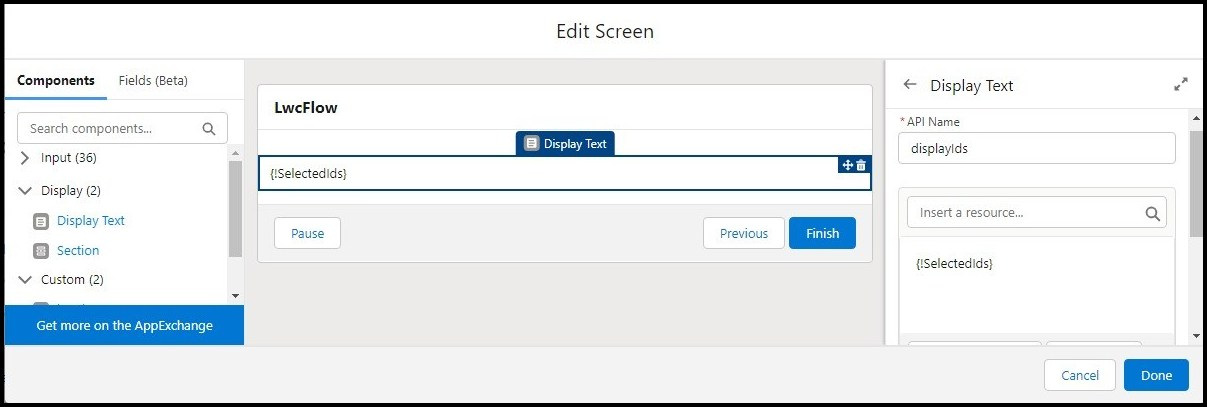
    • Under Components, select Display, Drag and drop Display Text onto the screenfill the following details on Long Text.
      • API Name - displayIds
      • Insert a resource ... - {!SelectedIds} 
  • Click Done.
  • Connect Screen Element to Screen Element.
Screen Element

Flow Diagram 

Output 
If you have any questions you can reach out our Salesforce Consulting team here.

Thursday, 30 December 2021

Manipulation on Comma Separated values using Salesforce flow

SCENARIO

While working on one of the requirements for a manufacturing solutions customer based out Atlanta, Georgia there was need to automate User Onboarding Process based on the profile they are assigned to. When a user is added through the data loader, need to add that user to a public group (10 possible groups) automatically. Client wants the new user to be assigned to certain public groups based on the profile the new user has.

APPROCAH

We can think of many solutions to achieve the requirement, for example - Trigger, Apex Class etc., but we've decided to go with less coding approach either through Salesforce flow or Process builder to achieve the requirement.

We'd faced bulkification issue in Process builder earlier, we choose to go with salesforce flow to meet this requirement.

CHALLENGE

Based on the approach taken, we lead to a situation for having multiple groups assignment for user and comma separated public group Ids.

We have used custom metadata for required configuration.

We were able to get list of IDs (Collection of Ids) which are stored in a text field of custom metadata. We can use the same in our Salesforce Flow further execution.

Example:- 
Input String :- 00G2x000000X1GPEA0, 00G2x000000X1GUEA0, 00G2x000000X1GZEA0
Output String Collection:-  00G2x000000X1GPEA0
                                    00G2x000000X1GUEA0
                                    00G2x000000X1GZEA0
                                    
In the above example, comma-separated input string is 00G2x000000X1GPEA0, 00G2x000000X1GUEA0, 00G2x000000X1GZEA0 and output is an Array List - string collection. 

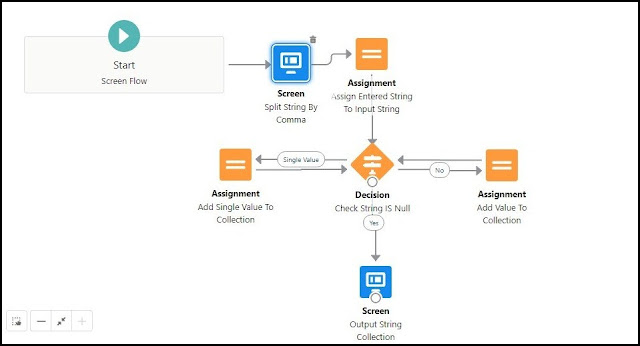
Below are the steps to get a List of Ids from a comma-separated string of Ids.

Step 1:-  Define flow properties.
  • Click Setup.
  • In the Quick Find box, type Flows.
  • Select Flows then click on the New Flow.
  • Select the Autolaunched Flow (No Trigger) option and click on Next and configure the flow as follows:
    • How do you want to start building: Freeform

Step 2:- Flow variables and formulas.
In this step, we will define variables and formulas.

Define InputString Text variable to store entered string.
  • Under Toolbox, select Manager, click on New Resource.
  • Input following information,
    • Resource Type - Variable
    • API Name - InputString
    • Data Type - Text
    • Allow multiple values (collection) - Uncheck 
  • Click Done.
InputString variable
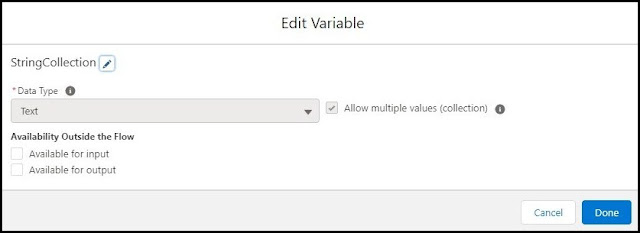
Define StringCollection Text variable to store separated string.
  • Under Toolbox, select Manager, click on New Resource.
  • Input following information,
    • Resource Type - Variable
    • API Name - StringCollection
    • Data Type - Text
    • Allow multiple values (collection) - check 
  • Click Done.

StringCollection variable

Define GetFirstElementFromString  Formula to Get the first element from InputString.
  • Under Toolbox, select Manager, click on New Resource.
  • Input following information,
    • Resource Type - Formula
    • API Name - GetFirstElementFromString  
    • Data Type - Text
    • Formula -
TRIM(LEFT({!InputString}, FIND(",",{!InputString} )-1))
  • Click Done.

GetFirstElementFromString Formula
Define RemoveElementFromString formula to remove element from InputString.
  • Under Toolbox, select Manager, click on New Resource.
  • Input following information,
    • Resource Type - Formula
    • API Name - RemoveElementFromString   
    • Data Type - Text
    • Formula - 
TRIM(RIGHT({!InputString}, LEN({!InputString}) - FIND(",", {!InputString})))
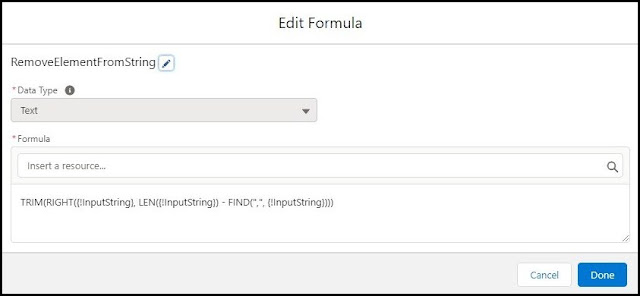
  • Click Done.
RemoveElementFromString Formula

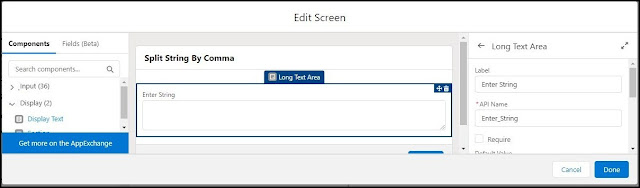
Step 3:-  Create Screen Element
In this step, we will create screen element to get the InputString.
  • Under Toolbox, select Elements. Drag and drop Screen onto the canvas.
  • Fill following Information on Screen Properties.
    • Enter Label the API Name will auto-populate.
    • Under Components, select Input, Drag and drop Long Text Area onto the screen. fill the following details on Long Text Area.
      • Label - Enter String
      • API Name - Enter_String
  • Click Done.
  • Connect Start to Screen Element.

Screen Element

Step 4:- Create Assignment Element.
In this step, we will assign Entered string to InputString.
  • Under Toolbox, select Elements. Drag and drop Assignment onto the canvas.
  • Fill as below,
    • Enter Label and API Name will auto-populate.
    • Set variable values as follow.
      • Variable - InputString
      • Operator - Equals
      • Value - Enter_String
    • Click Done.
  • Connect screen element to assignment element.          
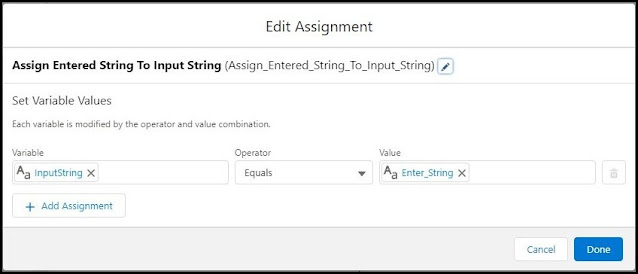
Assign Enter string to Input String

Step 5:- Create Decision Element
In this step, we will check InputString is null or InputString has one string or InputString has multiple strings separated by a comma.
  • Under Toolbox, select Elements. Drag and drop Decision onto the canvas.
  • OutComes
    • No (If InputString contains multiple strings)
      • Enter Label as No Outcome API Name will auto-populate.
      • Condition Requirements to Execute Outcome - All Conditions Are Met (AND)
      • Row 1 
        • Resource - InputString
        • Operator - Does Not Equal
        • Value - Empty String (Not Null)
      • Row 2
        • Resource - InputString
        • Operator - Contains
        • Value - ,
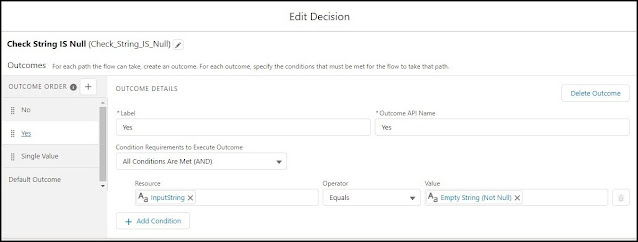
    • Yes (If inputString is null/empty)
      • Enter Label as Yes Outcome API Name will auto-populate.
      • Condition Requirements to Execute Outcome - All Conditions Are Met (AND)
      • Row 1 
        • Resource - InputString
        • Operator - Equals
        • Value - Empty String (Not Null)
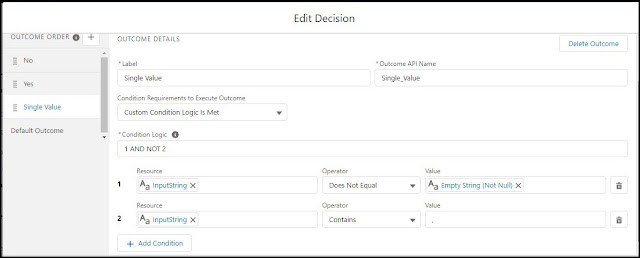
    • Single Value (If InputString has a single string)
      • Enter Label as Single Value Outcome API Name will auto-populate.
      • Condition Requirements to Execute Outcome - Custom Condition Logic Is Met
      • Condition Logic - 1 AND NOT 2 
      • Row 1 
        • Resource - InputString
        • Operator - Does Not Equal
        • Value - Empty String (Not Null)
      • Row 2
        • Resource - InputString
        • Operator - Contains
        • Value - ,
  • Click Done.
  • Connect assignment element to decision element. 
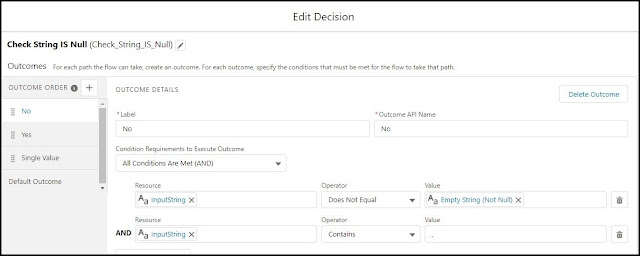
Decision element No as outcome

Decision element Yes as outcome

Decision element Single Value as outcome

Step 6:- Create Assignment Element
In this step, we will add InputString in StrinCollection and assign InputString as empty for Single Value outcome of the decision.
  • Under Toolbox, select Elements. Drag and drop Assignment onto the canvas.
  • Enter Label and API Name will auto-populate.
  • Set Variable Values as below.
    • Row 1
      • Variable - StringCollection
      • Operator - Add
      • Value - InputString
    • Row 2
      • Variable - InputString
      • Operator - Equals
      • Value - Empty String (Not Null)
  • Click Done.
  • Connect decision element to assignment element for Single Value outcome.
  • Connect back assignment element to decision element.
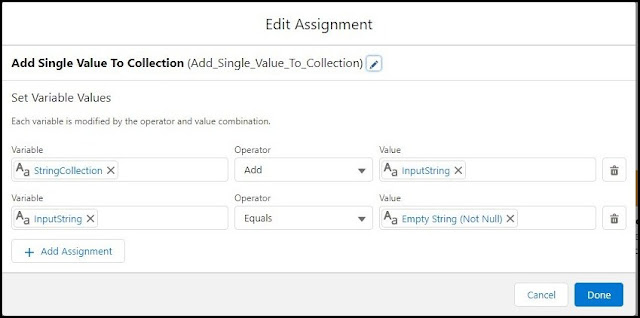
Assignment Add Single Value To Collection

Step 7:- Create Assignment Element
In this step, we will add the first element from InputString to StringCollection and remove that element to InputString for No outcome of decision.
  • Under Toolbox, select Elements. Drag and drop Assignment onto the canvas.
  • Enter Label and API Name will auto-populate.
  • Set Variable Values as below.
    • Row 1
      • Variable - StringCollection
      • Operator - Add
      • Value - GetFirstElementFromString
    • Row 2
      • Variable - InputString
      • Operator - Equals
      • Value - RemoveElementFromString
  • Click Done.
  • Connect decision element to assignment element for No outcome.
  • Connect back assignment element to decision element.
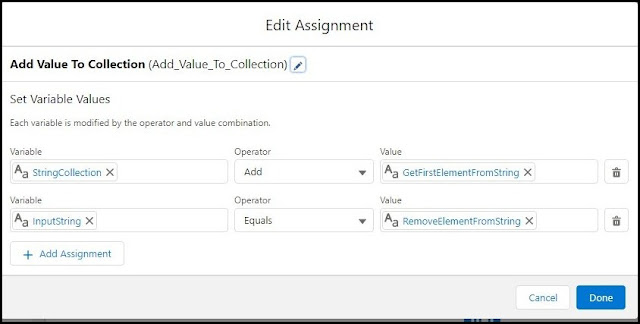
Assignment Add value to Collection

Step 8:- Create Screen Element
In this step, we will create a screen to see output.
  • Under Toolbox, select Elements. Drag and drop Screen onto the canvas.
  • Fill following Information on Screen Properties.
    • Enter Label the API Name will auto-populate.
    • under Components, select Input, Drag and drop Long Text Area onto the screenfill the following details on Long Text Area.
      • Label - String Collection
      • API Name - String_Collection
      • Default Value - {!StringCollection}
  • Click Done.
  • Connect decision element to screen element for Yes outcome.
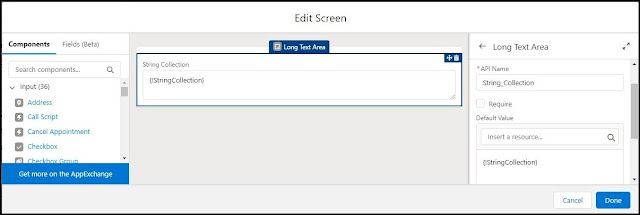
Screen Element output StringCollection


Flow:- 
Flow diagram

Flow output:-

If you have any questions you can reach out our Salesforce Consulting team here.