Showing posts with label LWC. Show all posts

Thursday, 28 July 2022

Fill the form and display data into data table without storing it into sObject/database using LWC

SCENARIO


While working on one of the requirements for an Automobile sector project for a client based out of Dallas, Texas, there was a requirement to add data using a form in LWC and display it into the dataTable without storing it into sObject/database.

CHALLENGE


Although the requirement seems easy, we faced challenges while displaying records into the dataTable and reRendering it when a new record is added.
 

APPROACH


To display records without storing them into sObject/database, We used a JSON object that will be responsible to store all the data to be displayed in the dataTable.
Also, we declared that JSON object as a reactive property using the @track decorator. So the table can be reRendered automatically when the value of that variable is changed/updated.

Data.html

<template>
    <lightning-card title="Add data into Datatable">
        <lightning-layout>
            <lightning-input class="slds-p-around_medium" label="Make"  type="string" name="Make"  onchange={makeChangedHandler} required="true"> </lightning-input>
            <lightning-input class="slds-p-around_medium" label="Model" type="string" name="Model" onchange={modelChangedHandler} required="true"> </lightning-input>
            <lightning-input class="slds-p-around_medium" label="Year" type="date" name="Year" onchange={yearChangedHandler} required="true"> </lightning-input>
        </lightning-layout>
        <lightning-button class="slds-m-left_x-small" label="Display" variant="brand" onclick={handleClick}>
        </lightning-button>
        <lightning-datatable key-field="id" id="datatable" data={fields} columns={columns}>
        </lightning-datatable>                 
    </lightning-card>  
</template>

Data.js

import { LightningElement,track } from 'lwc';

export default class Data extends LightningElement {
     columns = [{
        label: 'Make',
        fieldName: 'Make',
        type: 'text',
        sortable: true
    },
    {
        label: 'Model',
        fieldName: 'Model',
        type: 'text',
        sortable: true
    },
    {
        label: 'Year',
        fieldName: 'Year',
        type: 'Date',
        sortable: true
    },
];

    strMake;
    strModel;
    strYear;
    @track fields =[];
    
    makeChangedHandler(event){
        this.strMake = event.target.value;  
    }
    modelChangedHandler(event){
        this.strModel = event.target.value;
    }
    yearChangedHandler(event){
        this.strYear = event.target.value;
    }

    handleClick(){
        if(this.strMake  &&  this.strModel  && this.strYear)
        {
            this.fields = [...this.fields,{'Make' : this.strMake, 'Model' : this.strModel, 'Year' : this.strYear}];   
        }
        this.strMake ='';
        this.strModel ='';
        this.strYear ='';
        //code to clear field once values are entered
        this.template.querySelectorAll('lightning-input').forEach(element => {
        element.value = null;     
        });
    }
}

There are 3 input fields in the form. Whenever the values will be entered in these fields, it will get stored in their respective variables (strMake, strModel, strYear).

On click of Display button, these 3 inputs will be validated and pushed into an array, which is then used to display data in the data table. Also, it will clear these 3 input fields and allow users to enter another record.

As the array is declared as a reactive property, it will reRender the table automatically to display the newly created record.


OUTPUT


CONCLUSION


By using the above-mentioned approach & code, We will be able to add data into the data table without using sObject or saving data into a database in LWC.

If you have any questions you can reach out to our Salesforce Consulting team here.

Thursday, 19 May 2022

Lightning Web Component - Making custom dual list box with same functionality as standard Lightning-dual-listbox

SCENARIO

While working on one of the requirements for a Banking sector project for a client based out of London, UK there was a requirement to make a custom-made dual list box instead of the standard lightning-dual-listbox.

CHALLENGE

The client wanted a custom dual listbox instead of a standard because they wanted to implement different functionality on each button which was not possible in the standard lightning-dual-listbox.

APPROACH

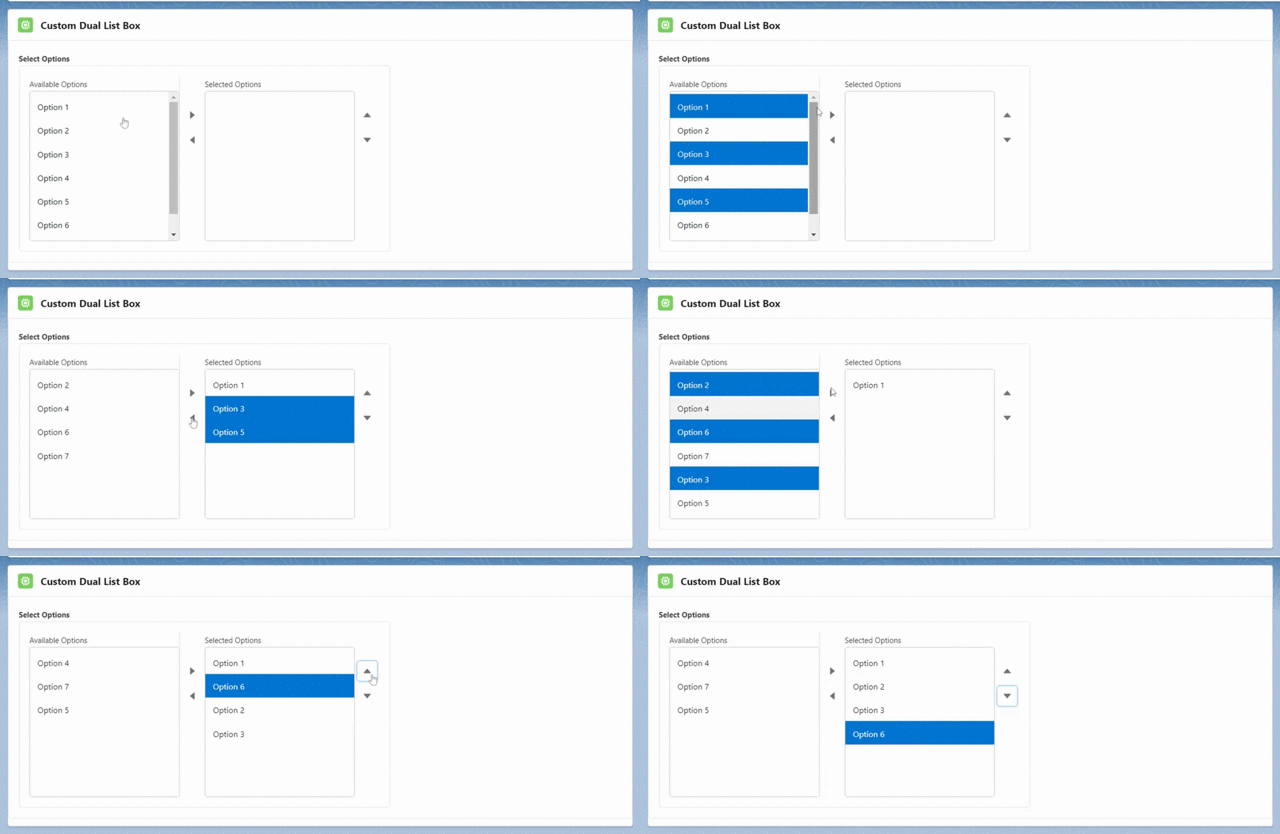
First, We created a custom dual list box having the same UI as standard lightning-dual-listbox having 2 list boxes and 4 buttons (right, left, up and down) using the code provided by the standard lightning design system.

We made sure that multiple values can be added from the available to the selected list box and vice-versa.

Refer to the below code that we used to create custom dual listbox.

customDualListBox.html

<template>
    <lightning-card title="Custom Dual List Box" icon-name="custom:custom63">
        <div class="slds-form-element slds-box" role="group" aria-labelledby="picklist-group-label">
            <span id="picklist-group-label" class="slds-form-element__label slds-form-element__legend">Select
                Options</span>
            <div class="slds-form-element__control">
                <div class="slds-dueling-list">
                    <div class="slds-assistive-text" id="drag-live-region" aria-live="assertive"></div>
                    <div class="slds-assistive-text" id="option-drag-label">Press space bar when on an item, to move it
                        within the list. Cmd/Ctrl plus left and right arrow keys, to move items between lists.</div>
                    <div class="slds-box">
                        <!-- Available Options -->
                        <div class="slds-dueling-list__column slds-border_right">
                            <span class="slds-form-element__label" id="label-107">Available Options</span>
                            <div class="slds-dueling-list__options slds-border_right">
                                <ul aria-describedby="option-drag-label" aria-labelledby="label-107"
                                    aria-multiselectable="true" class="slds-listbox slds-listbox_vertical"
                                    role="listbox">
                                    <template for:each="{availableOptions}" for:item="option">
                                        <li class="slds-listbox__item" data-value="{option.value}" key="{option.value}"
                                            onclick="{handleSelectionForAvailable}">
                                            <div data-val="{option.value}"
                                                class="slds-listbox__option slds-listbox__option_plain slds-media slds-media_small slds-media_inline">
                                                <span class="slds-media__body">
                                                    <span title="English" class="slds-truncate">{option.label}</span>
                                                </span>
                                            </div>
                                        </li>
                                    </template>
                                </ul>
                            </div>
                        </div>
                        <!-- Right left buttons -->
                        <div class="slds-dueling-list__column">
                            <button class="slds-button slds-button_icon slds-button_icon-container"
                                title="Move Selection to Second Category" onclick="{handleRightClick}">
                                <lightning-icon icon-name="utility:right" size="x-small" alternative-text="right"
                                    title="right"></lightning-icon>
                                <span class="slds-assistive-text">Move Selection to Second Category</span>
                            </button>
                            <button class="slds-button slds-button_icon slds-button_icon-container"
                                title="Move Selection to First Category" onclick="{handleLeftClick}">
                                <lightning-icon icon-name="utility:left" size="x-small" alternative-text="left"
                                    title="left"></lightning-icon>
                                <span class="slds-assistive-text">Move Selection to First Category</span>
                            </button>
                        </div>
                        <!-- Selected Options -->
                        <div class="slds-dueling-list__column">
                            <span class="slds-form-element__label" id="label-108">Selected Options</span>
                            <div class="slds-dueling-list__options">
                                <ul aria-describedby="option-drag-label" aria-labelledby="label-108"
                                    aria-multiselectable="true" class="slds-listbox slds-listbox_vertical"
                                    role="listbox">
                                    <template for:each="{selectedOptions}" for:item="option">
                                        <li class="slds-listbox__item" data-value="{option.value}" key="{option.value}"
                                            onclick="{handleSelectionForSelected}">
                                            <div data-val="{option.value}"
                                                class="slds-listbox__option slds-listbox__option_plain slds-media slds-media_small slds-media_inline">
                                                <span class="slds-media__body">
                                                    <span title="selected" class="slds-truncate">{option.label}</span>
                                                </span>
                                            </div>
                                        </li>
                                    </template>
                                </ul>
                            </div>
                        </div>
                        <!-- Up down buttons -->
                        <div class="slds-dueling-list__column">
                            <button class="slds-button slds-button_icon slds-button_icon-container"
                                title="Move Selection up" onclick="{handleUpClick}">
                                <lightning-icon icon-name="utility:up" size="x-small" alternative-text="up" title="up">
                                </lightning-icon>
                                <span class="slds-assistive-text">Move Selection up </span>
                            </button>
                            <button class="slds-button slds-button_icon slds-button_icon-container"
                                title="Move Selection down" onclick="{handleDownClick}">
                                <lightning-icon icon-name="utility:down" size="x-small" alternative-text="down"
                                    title="down"></lightning-icon>
                                <span class="slds-assistive-text">Move Selection down </span>
                            </button>
                        </div>
                    </div>
                </div>
            </div>
        </div>
    </lightning-card>
</template>

customDualListBox.js

import { LightningElement, track } from "lwc";
export default class customDualListBox extends LightningElement {
    @track availableOptions = [
        { label: "Option 1", value: "o1" },
        { label: "Option 2", value: "o2" },
        { label: "Option 3", value: "o3" },
        { label: "Option 4", value: "o4" },
        { label: "Option 5", value: "o5" },
        { label: "Option 6", value: "o6" },
        { label: "Option 7", value: "o7" },
    ];

    @track selectedAvailableOptions = [];
    @track selectedOptions = [];
    @track selectedSelectedOptions = [];

    handleSelectionForAvailable(event) {
        if (this.selectedAvailableOptions.filter((option) => option === event.currentTarget.dataset.value).length) {
            this.selectedAvailableOptions = this.selectedAvailableOptions.filter((option) => option !== event.currentTarget.dataset.value);
            event.currentTarget.setAttribute("aria-selected", "false");
        } else {
            this.selectedAvailableOptions.push(event.currentTarget.dataset.value);
            event.currentTarget.setAttribute("aria-selected", "true");
        }
    }

    handleSelectionForSelected(event) {
        if (this.selectedSelectedOptions.filter((option) => option === event.currentTarget.dataset.value).length) {
            this.selectedSelectedOptions = this.selectedSelectedOptions.filter((option) => option !== event.currentTarget.dataset.value);
            event.currentTarget.setAttribute("aria-selected", "false");
        } else {
            this.selectedSelectedOptions.push(event.currentTarget.dataset.value);
            event.currentTarget.setAttribute("aria-selected", "true");
        }
    }

    handleRightClick() {
        var tempSelectedOptions = JSON.parse(JSON.stringify(this.selectedAvailableOptions));
        if (tempSelectedOptions.length) {
            for (let selectedOption of tempSelectedOptions) {
                this.selectedOptions.push(...this.availableOptions.filter((option) => option.value === selectedOption));
                this.availableOptions = this.availableOptions.filter((option) => option.value !== selectedOption);
            }
        }
        this.selectedAvailableOptions = [];
    }

    handleLeftClick() {
        var tempSelectedOptions = JSON.parse(JSON.stringify(this.selectedSelectedOptions));
        if (tempSelectedOptions.length) {
            for (let selectedOption of tempSelectedOptions) {
                this.availableOptions.push(...this.selectedOptions.filter((option) => option.value === selectedOption));
                this.selectedOptions = this.selectedOptions.filter((option) => option.value !== selectedOption);
            }
        }
        this.selectedSelectedOptions = [];
    }

    handleUpClick() {
        var tempSelectedOptions = JSON.parse(JSON.stringify(this.selectedSelectedOptions));
        if (tempSelectedOptions.length == 1) {
            for (let i = 0; i < this.selectedOptions.length; i++) {
                if (i != 0 && this.selectedOptions[i].value === tempSelectedOptions[0]) {
                    [this.selectedOptions[i], this.selectedOptions[i - 1]] = [this.selectedOptions[i - 1], this.selectedOptions[i]];
                    break;
                }
            }
        }
    }

    handleDownClick() {
        var tempSelectedOptions = JSON.parse(JSON.stringify(this.selectedSelectedOptions));
        if (tempSelectedOptions.length == 1) {
            for (let i = 0; i < this.selectedOptions.length; i++) {
                if (i != this.selectedOptions.length - 1 && this.selectedOptions[i].value === tempSelectedOptions[0]) {
                    [this.selectedOptions[i], this.selectedOptions[i + 1]] = [this.selectedOptions[i + 1], this.selectedOptions[i]];
                    break;
                }
            }
        }
    }
}

  • handleSelectionForAvailable: This function is used to select/unselect value(s) under the available options section.
  • handleSelectionForSelected: This function is used to select/unselect value(s) selected options section.
  • handleLeftClick: This function is responsible to add the selected value(s) in the selected options section and remove values from available options section.
  • handleRightClick: This function is responsible to add the selected value(s) in the available options section and remove values from selected options section.
  • handleDownClick: This function is used to move values one step down in the selected options section.
  • handleUpClick: This function is used to move values one step up in the selected options section.

customDualListBox.xml

<?xml version="1.0" encoding="UTF-8"?>
<LightningComponentBundle xmlns="http://soap.sforce.com/2006/04/metadata">
    <apiVersion>54.0</apiVersion>
    <isExposed>true</isExposed>
    <targets>
        <target>lightning__AppPage</target>
        <target>lightning__RecordPage</target>
        <target>lightning__HomePage</target>
    </targets>
</LightningComponentBundle>


OUTPUT


CONCLUSION

By using the above code, We are able to make a custom dual list box with the same functionality as the standard Lightning-dual-listbox.


If you have any questions you can reach out our Salesforce Consulting team here.

Thursday, 10 March 2022

How to retrieve all the files by traversing folder and sub folders on drag and drop using LWC


OUTLINE
While working on one of the requirements for a manufacturing sector solutions customer based out in Atlanta, Georgia, there was a requirement to traverse\navigate folder and sub folders to get all the files dropped by the user.

CHALLENGE Our main challenge was reading each entry in the directory (folder) or sub-directory (subfolder) dropped by the user to retrieve all the files within the directory (folder).

SOLUTION
  • To solve this issue, we've used JavaScript async function where each dataTransfer.item is converted to webkitGetAsEntry and checked whether it is a directory or a file.
  • If it is a fileEntry then it will be stored in array variable but if it is a directory then an async function named as traverseDirectory will be called and Directory entry will passed as a parameter.
  • In traverseDirectory function a reader variable is created and returned a promise, an anonymous function is associated with promise in which we created an array(local) variable and defined a function named as readEntries.
  • readEntries will traverse the directory.
    • if directory is empty then resolve will be return with all the promises.
    • if directory is not empty then further it will check for fileEntry.
      • If it is a fileEntry then it will be pushed into the array (local) variable.
      • If it is not a fileEntry then traverseDirectory will be called recursively and sub directory will be passed as a parameter.
  • And if, any error occurs then reject will be returned with an error.
Sample code is as below:

FileUploader.html

<template> 
    <lightning-card title="File Uploader"> 
        <div class="slds-align_absolute-center slds-p-bottom_medium"> 
            <form id="fileUploadForm"> 
                <div class="slds-form-element slds-align_absolute-center"> 
                    <span class="slds-form-element__label" id="file-selector-primary-label"></span> 
                    <div class="slds-form-element__control"> 
                        <div class="slds-file-selector slds-file-selector_files"> 
                            <div class="slds-file-selector__dropzone slds-has-drag-over slds-grid slds-wrap" 
                                ondrop={dropHandler} ondragover={dragOverHandler}> 
                                <div class="slds-m-around_xx-large"> 
                                    Drop File(s)/Folder 
                                </div> 
                            </div> 
                        </div> 
                    </div> 
                </div> 
            </form> 
        </div> 
        <template if:true={showFilePropertiesModal}> 
            <section role="dialog" tabindex="-1" aria-labelledby="modal-heading-01" aria-modal="true" 
                aria-describedby="modal-content-id-1" class="slds-modal slds-fade-in-open"> 
                <div class="slds-modal__container"> 
                    <header class="slds-modal__header"> 
                        <button class="slds-button slds-button_icon slds-modal__close slds-button_icon-inverse" 
                            title="Close" onclick={handleCloseModal}> 
                            <lightning-icon icon-name="utility:close" alternative-text="close" variant="inverse" 
                                size="small" onclick={handleCloseModal}></lightning-icon> 
                            <span class="slds-assistive-text">Close</span> 
                        </button> 
                        <h2 id="modal-heading-01" class="slds-text-heading_medium slds-hyphenate">Set File Properties 
                        </h2> 
                    </header> 
                    <div class="slds-modal__content slds-var-p-around_large" id="modal-content-id-1"> 
                        <div class="slds-card slds-var-p-around_large"> 
                                <template for:each={files} for:item="file"> 
                                    <div class="slds-grid slds-gutters" key={file.name} > 
                                        <div class='slds-col'> 
                                            <lightning-input label="File Name" type="text" value={file.name}> 
                                            </lightning-input> 
                                        </div> 
                                        <div class='slds-col'> 
                                            <lightning-combobox name="types" label="Document Type" 
                                                placeholder="Select File Type" options={options} 
                                                onchange={handleFileTypeSelectionChange} required> 
                                            </lightning-combobox> 
                                        </div> 
                                    </div> 
                                </template> 
                        </div> 
                    </div> 
                    <footer class="slds-modal__footer">
                        <button class="slds-button slds-button_neutral" onclick={handleCloseModal} 
                            title="Cancel">Cancel</button> 
                        <button class="slds-button slds-button_brand" onclick={handleFileUpload} 
                            title="Upload">Upload</button> 
                    </footer> 
                </div> 
            </section> 
            <div class="slds-backdrop slds-backdrop_open"></div> 
        </template> 
    </lightning-card> 
</template>


FileUploader.Js

import { LightningElement, api, track} from 'lwc'; 

export default class FileUploader extends LightningElement { 
    @api recordId; 
    @track showFilePropertiesModal=false; 
    @track showDocumentPropertiesForm=false; 
    @track files=[]; 
    @api options=[{label:'Print Card', value:'Print_Card'},{label:'Vertices Output', value:'Vertices_Output'}]; 

 
    dragOverHandler(event){ 
        event.preventDefault(); 
    } 

    dropHandler(event){ 
        event.stopPropagation(); 
        event.preventDefault(); 
        this.handleDroppedContent(event.dataTransfer.items); 

    } 

    async handleDroppedContent(items) { 
        var isDirectory = false; 
        var isFile = false; 

        for (let i = 0; i < items.length; i++) { 
            let item = items[i].webkitGetAsEntry(); 
            if (item.isDirectory) { 
                if (isFile) { 
                    this.files = []; 
                    console.log('File and Folder combination are not allowed to upload'); 
                    return; 
                } else if (isDirectory) { 
                    this.files = []; 
                    console.log('Multiple Folders are not allowed to upload'); 
                    return; 
                } 
                else { 
                    isDirectory = true; 
                } 
            } else if (item.isFile) { 
                if (isDirectory) { 
                    this.files = []; 
                    console.log('File and Folder combination are not allowed to upload'); 
                    return; 
                } else { 
                    isFile = true; 
                } 
            } 
        } 
        for (let i = 0; i < items.length; i++) { 
            let item = items[i].webkitGetAsEntry(); 
            if (item) { 
                if (item.isDirectory) { 
                    await this.traverseDirectory(item).then((result) => {                                                 
                        this.pushResultIntoFiles(result); 
                    }); 
                } else if (item.isFile) { 
                    this.files.push(item); 
                } 
            } 
        } 
        this.convertFileEntryToFile();         
        this.handleCachedFile(); 
    } 

    async traverseDirectory(entry) { 

        let _this = this; 
        const reader = entry.createReader(); 
        return new Promise((resolve, reject) => { 
            const iterationAttempts = []; 
            function readEntries() { 

                reader.readEntries((entries) => { 

                    if (!entries.length) { 
                        resolve(Promise.all(iterationAttempts)); 
                    } else { 
                        iterationAttempts.push(Promise.all(entries.map((ientry) => { 

                            if (ientry.isFile) { 
                                return ientry; 
                            } 
                            return _this.traverseDirectory(ientry); 
                        }))); 
                        readEntries(); 
                    } 
                }, error => reject(error)); 
            } 
            readEntries(); 
        }); 
    } 

    handleCachedFile(){ 
        if(this.files.length>0){ 
           this.showFilePropertiesModal=true; 
            this.showDocumentPropertiesForm=true; 
        } 
        else{ 
            console.log('Error'); 
        } 
    } 

    pushResultIntoFiles(result) { 
            result.forEach(element => { 
                if (element.isFile) { 
                    this.files.push(element); 
                } else { 
                    this.pushResultIntoFiles(element); 
                } 
            }); 
    } 

    convertFileEntryToFile() { 
        var promises = []; 
        var tempFile; 
        this.files.forEach(fileEntry => { 
            tempFile = new Promise(resolve => { 
                fileEntry.file(file => { 
                    resolve(file); 
                }); 
            }); 
            promises.push(tempFile); 
        }); 
        Promise.all(promises).then(file => { 
            this.files = []; 
            this.files = file; 
        }); 
    } 

    handleCloseModal(){ 
        this.files=[]; 
        this.showFilePropertiesModal=false; 
        this.showDocumentPropertiesForm=false; 
    } 

    handleFileUpload(){ 
        //Write your file upload code. 
    }            
} 
Output
CONCLUSION
By using promises and file reader effectively in LWC, we should be able to get all the files from directory and its sub-directories.

If you have any questions you can reach out our Salesforce Consulting team here.

Thursday, 20 May 2021

Lifecycle Hooks - Lightning Web Component

INTRODUCTION

A lifecycle hook is a JavaScript callback method which is called at a certain point in the lifecycle of a component instance. The components' lifetime was managed using the Aura system's init(), render(), rerender(), afterRender() and unrender() methods. In Lightning Web Component, callback methods are used to manage the components' lifespan, Lifecycle hooks are what they're called. You can adjust the actions by overriding these hooks. There are various life cycle hook methods to pick from, and we will go through each one in detail in this blog.

Here are the Types of lifecycle hooks

1. Constructor():

  • Whenever a component instance is created, this hook is invoked. 
  • The first statement must be super() with no parameters. 
  • Don’t use a return statement inside the constructor body.
  • This hook flows from parent to child, which means that it fires in the parent first. You can't access child elements because they don't exist yet. Properties aren't passed yet, either.
  • Properties are assigned to the component after construction and before the connectedCallback() hook.
  • The similarity of this hook in Aura is with init() event but init() Aura event flows from child to parent.


sample code

2. connectedCallback():

  • it fires when a component is inserted into the DOM. 
  • The connectedCallback() hook can be fired more than one time.
  • This hook flows from parent to child. You can’t access child elements because they don’t exist yet. 
  • Use connectedcallback() to interact with a component's environment. For example, you can utilize it for:
    • Establishing communication with the current document or container and coordinate behavior with the environment. 
    • Performing initialization tasks, such as fetch data, set up caches, or listen for events.
    • Subscribe and Unsubscribe from a Message Channel.


SAMPLE CODE

3. disconnectedCallback():

  • Invoked when the element is removed from a DOM. 
  • This hook flows from parent to child.
  • Use disconnectedCallback() to clean up work done in the connectedCallback(), like purging caches or removing event listeners.
  • You can also use this hook to unsubscribe from a message channel.

SAMPLE CODE

4. render():

  • To update UI, we can call this method. It may be called before or after connectedCallback().
  • It is rare for a portion to be referred to as render(). The most typical use is to apply correct template (HTML file) based on business logic. The method must return correct HTML template. 
  • For example, imagine that you have a component that needs to be rendered in two different ways but you don’t want to mix it in one HTML file. So, here we can create multiple HTML files in the component bundle. And then Import  them and add a condition in the render() method to return the correct template depending on the component's state.

SAMPLE CODE


FirstTemplate.HTML
SecondTemplate.HTML
App.HTML & App.js

5. renderedCallback():

  • it is called after rendering of every component. This lifecycle hook is specific to Lightning Web Components, it is not from the HTML custom elements specification. This hook flows from child to parent.
  • A component is rerendered when the value of property changes and that property is used either directly in a component template or indirectly in the getter of a property that is used in a template.
  • As this hook is called after every render of the component, we need to be careful if we perform some action in specific condition. It should be guarded with the condition that doesn't trigger an infinite rendering loop.


SAMPLE CODE

6. errorCallback(error,stack):

  • It captures the errors that may occur in the lifecycle hooks of all descendant components.
  • The error argument is a JavaScript native error object and stack parameter is a string.


SAMPLE CODE


summary


The framework manages the lifespan of Lightning web components. When the state of a component changes, the framework generates components, adds and removes them from the DOM, and renders DOM modifications. 

If you have any questions you can reach out our Salesforce Consulting team here.