Showing posts with label salesforce release. Show all posts

Thursday, 16 June 2022

Delete Inactive Picklist Values in Bulk (Beta)

With the Salesforce summer’22 release, we can bulk delete unused inactive picklist values. Before the release of summer’22, custom picklists with many inactive values were difficult to maintain because we can delete inactive ones at a time. let’s take a look in brief.

Clean Up Inactive Picklist Values (Beta)

Managing inactive picklist values and establishing restrictions on the number of inactive values for custom picklists can help your Salesforce org run more smoothly and efficiently. You can bulk delete inactive unused values from a picklist if there are a lot of them.

Below are the steps to avail of this feature in your org.

Active Bulk delete inactive picklist values(Beta) option

  • Click Setup.
  • In the Quick Find box, type Picklist Settings.
  • Activate Bulk Delete Inactive Picklist Values (Beta) option.

Bulk Delete Inactive Picklist Values
Now, we will get the option to bulk delete inactive unused picklist values.

Below are the rules that apply while bulk deleting picklist values.

Rules
  • This feature is available only for custom picklist fields on an object. It’s not available for standard or multi-select picklist fields.
  • This feature is only for picklist fields that have defined values. It’s not available for picklist fields that use a global value set.
  • This feature deletes inactive, unused picklist values. If a picklist value is inactive but still referenced in a record, the value isn’t deleted.
  • After you delete unused values, if a picklist is unbound and the total number of inactive values falls below the limit, the field is set to a bound picklist.
  • While the job that deletes inactive values runs, these actions are unavailable on that picklist field: Activate, Activate Selected, Deactivate, Deactivate Selected, Delete, Delete Selected, Replace, and Replace Selected. The buttons are enabled, but an error message is returned when you click them.
  • While the job that deletes inactive values runs, changes to the picklist field via Metadata API are unavailable. You can retrieve data from the field, but you can’t: create a picklist value, update the field or its values, delete the field or its values, or deploy the field.

Follow the below steps to delete all inactive unused values from a picklist.

  • Click Setup.
  • Click on Object Manager, and select your Object.
  • Click on Fields & Relationships, and click the picklist field. In the Picklist Values Used section, you can see how many inactive picklist values the field has.
  • From the Inactive Values section of the picklist field, click Delete Unused Values.

Delete unused values

After all of the picklist values have been deleted, you will receive an email indicating whether or not the deletion was successful. The email is sent to the user whose email address was used to initiate the deletion.

Click here to see release notes of summer'22 on Clean Up Inactive Picklist Values (Beta) 

If you have any questions you can reach out our Salesforce Consulting team here.

Thursday, 12 May 2022

Select the Right Report Type for New Reports Smoothly

As with every Salesforce release, there are new features rolled out across the platform. With Spring ’22 there are some specific enhancements to Reports. Let’s take a look at it.

Easily Find the Right Report Type for New Reports

While creating a Report take the uncertainty out of selecting a report type. With the release of Spring ’22 enhanced report type selector, quickly access recently used report types and view the included fields and objects. Quickly identify which report types are standard and custom and hide those that you don't need.

Let's look into the Report tab

Start a new report on the Reports tab. In the Choose Report Type windows, you can still select report type categories on the left and search for report types by name in the search bar.

But now there’s much more.

Choose Report Type window

If you want to create a report which is the same as one that you have created in the previous week, but you can’t remember what report type you used. No worry! scroll through the Recently Used list to find the type that you used and when you used it.

Recently Used Reports

To see the details of the Report Type, Click on the search report or recently used report list.

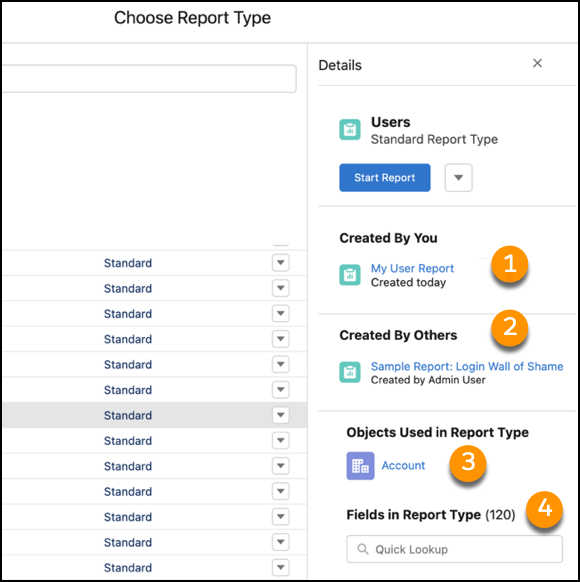
Detail Panel

In the detail panel following details display the Report

  1. The Report Created By.
  2. Report Created By Others in your org.
  3. The List of Objects used in the report type.
  4. Quick Lookup in the Fields used in Report.

As Salesforce Classic, You can also hide the report type from the report type list. hidden report types do not appear in the search results and all the category-specific lists, and you can’t use them to create reports. You can see the hidden report type under the Hidden Report Type tab and available to see again if needed.

Hidden Report Types

Click Here to see the release notes on report type selector. 


If you have any questions you can reach out our Salesforce Consulting team here.

Friday, 13 November 2020

Salesforce Releases its Top Features Of Winter '21

Salesforce Release Winter'21

As a result of the three Salesforce updates every year; Administrators, Developers, and Consultants are getting a lot more features and resources to please their customers and consumers. At the moment, we are moving towards the release of Winter'21, which will add new looks and features to the organization. We get new Features related to Lightning Experience, Lightning Flow, Lightning Web Component, Apex, Communities, Pardot, Quip, Einstein Analytics, and APIs. Let’s dive into our top features of this release.


Scheduled List Email 

Now we can plan when to send a list email. Choose the right time and date to ensure the best time to receive emails. We determine which emails we would like to send — and on which days. By scheduling, we can build emails ahead of time and schedule when they're out. By planning all of our email choices ahead, we will make our marketing activities even more efficient. For example, schedule a list email to arrive on a working day. Previously, scheduling was only available for individual emails, not for list emails. 


Analyze the performance of the Lightning Page 

When it comes to growth, organizational performance is the ruler. If users experience sluggish performance or long page loading times when using Lightning Experience, they no longer need to worry. Find suggestions for a better performance of the record page based on an analysis of the page right inside the Lightning App Builder. Performance Analysis in the App Builder tests the fields, instances of the Relevant Lists component, and the metadata of the record page. By clicking the Analyze button, get an analysis of the page with suggestions for improving the page performance.


Display survey pages that are focused on your data 


With each update, Salesforce Surveys seem to be getting more and more strong. Now, we can use our data in Salesforce org to decide which survey page the user will see next. Users will move to the relevant page on the basis of the answer. We can use the variables to specify the conditions in Page branching logic. Now the user will experience a new journey. 


Choose the Position of your utility bar


The utility bar gives easy access to common productivity tools, such as Notes and Recent items. Now, we can choose the position of our Salesforce org utility bar. Customize where our utility bar appears. We may move the utility bar to the bottom right or to the bottom left of the screen. 


Trigger a flow before the record is deleted 


Previously, we always need a trigger to add any validation or functionality before a record is deleted. We don't need to write an Apex code anymore. We can now use a flow to run before the record is deleted. This auto launched flow will execute in the background and update relevant records when a record is deleted. 


Use Safe Navigation Operator to Remove NullPointerException 


Winter'21 is bringing us a new safe navigation operator (?.). We can use the safe navigation operator (?.) to remove the consecutive condition that checks for null references. We may prevent  NullPointerException with the aid of this new operator. This operator handles expressions that try to run on a null value and returns null instead of raising a NullPointerException. The right-hand side evaluates only if the left-hand side is not evaluated to null. In the variable as well as in the function, we can use a safe navigation operator. 


This expression will first test x and return null if x is null. Otherwise, the return value will be x.y


// code checking for nulls 
x?.y // test to: x == null? Null : x.y 

This example demonstrates a SOQL query using a safe navigation operator. 

ContactRec = [SELECT FirstName FROM Contact WHERE Id = :contactId]; 
if (ContactRec.size() == 0)  // Contact was deleted
{     
    return null;
} 
return ContactRec[0].FirstName; 

//New Code 
return [SELECT FirstName FROM Contact WHERE Id = : contactId]?.FirstName; 


Enhance Apex Testing with New SObject Error Methods 


New Release gives us new SObject Error methods that minimize our efforts. Previously, we needed to perform DML operations to check the result for errors. Now we can monitor errors with the new  SObject.hasErrors() method and SObject.getErrors() method without running a DML operation. Use  SObject.addError() method to add errors to the specific fields. The hasErrors() method checks if an instance of SObject contains errors. We can get a list of errors for a specific instance of SObject using the getErrors() method. 


The following example will help you to understand:

//Base code sample for use with addError, getErrors

Contact con = new Contact();    

String message = 'New error in SObject';

con.addError('FirstName', message);  //New overload that dynamically embraces the field at runtime   

List<Database.Error> errors = con.getErrors();     

System.debug( errors.size());  //print 1 in debug 

Database.Error error = errors.get(0);    

System.debug(error.getStatusCode()); //print FIELD_CUSTOM_VALIDATION_EXCEPTION in debug 

String[] fields = error.getFields();   

System.debug(fields);   // print FirstName in debug 

System.debug(fields.size()); // print 1 in debug 


So in Salesforce Winter 21 update, we've got some fantastic features. Here you can read the full Salesforce Winter'21 Release Notes. 

If you have any questions you can reach out our Salesforce Consulting team here.