Thursday, 21 April 2022

[Resolved:] Displaying and Redirecting Vf Page from Aura Component by disabling clickjack protection using iframe through quick action


SCENARIO 

While working on one of the requirements for an insurance sector solutions customer based in Chicago, Illinois there was a requirement to display and redirect Vf page from the lightning aura component through quick action by compulsorily using IFrame.

CHALLENGE

We achieved this functionality of redirecting VF page from aura component.

However, we were not able to display VF page from aura component.  

APPROACH

So in order to solve the issue of displaying Vf page from aura component, we have  to Disable Clickjack protection whenever we are using IFrame

Why and When to use IFrame?

  • An IFrame can insert all sorts of media. It allows you to add documents, videos, and interactive media within a page. By doing this, you can display a secondary webpage on your main page. It also allows you to include a piece of content from other sources. It can integrate the content anywhere within your page, without having to include them in your web layout’s structure. 

  • Developers mainly use the IFrame tag to embed(place content) HTML document within the current one, it lets you add an independent HTML document with its browsing context. It is useful for pulling content from other domains, it safely allows the advantage of being able to visually show data from other domains without letting them stomp all over your page with unlimited access. 

EXAMPLE CODE:

Redirect.vfp:

<apex:page showHeader="false" sidebar="false" controller="RedirectExample">
<apex:form >
<apex:pageblock >
<apex:commandlink action="{!redirect}" target="_blank">

<apex:commandButton value="Open in New Tab" />
</apex:commandLink>
</apex:pageblock>
</apex:form>
</apex:page>

RedirectExample.apxc:

public class RedirectExample {
public RedirectExample(){

}
public pageReference redirect() {
PageReference pageRef = new PageReference('http://www.google.com');
pageRef.setRedirect(true);
return pageRef;
}
}

vfpinsidelightning.cmp:

<aura:component implements="forceCommunity:availableForAllPageTypes,force:appHostable,flexipage:availableForAllPageTypes,flexipage:availableForRecordHome,force:hasRecordId,force:lightningQuickAction" >
    <iframe src="Enter your namespace here.com/apex/Redirect?core.apexpages.request.devconsole=1"/>
</aura:component>


Create quick action as shown below:


Now add this newly created quick action on your objects page layout

In 'Mobile & Lightning Action' section drag your quick action from the options provided and add it below 'Salesforce Mobile and Lightning Experience Action' .


In order to display vf page in the aura component using iframe, we have to follow the steps as mentioned below:
    
  • Go to Setup.
  • Write Session settings in quick find  search box .
  • Select Session Settings.
  • Uncheck ”Enable clickjack protection for customer Visualforce pages with headers disabled” under Clickjack Protection section.


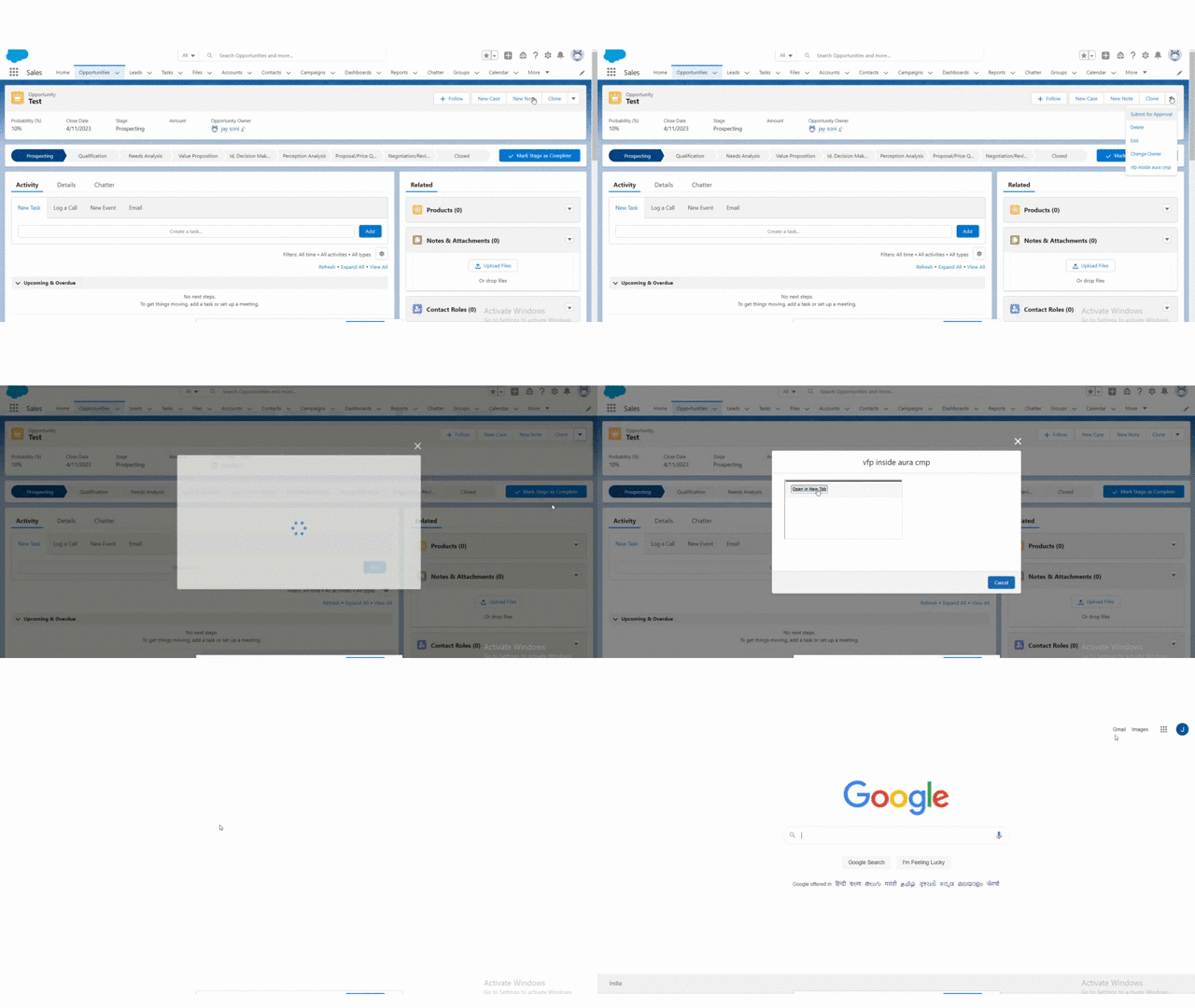
OUTPUT:


CONCLUSION

By following above-mentioned steps and given approach, We were able to display vf page in aura component by disabling Clickjack Protection via quick action using an IFrame.


If you have any questions you can reach out our Salesforce Consulting team here.

Thursday, 14 April 2022

Lightning Web Component in Flows

Lightning Flow Builder is one of the powerful automation tools available in Salesforce which gets the work done without a single line of code.

In Lightning Flow Builder, you can accomplish almost anything like creating records, updating records, sending emails, triggering approval processes, connecting to an external system, and from winter 20 release, Lightning Web Components can be incorporated into Flow.

Lightning Web Components in Flow: Why to use them
Lighting Web Components in Flow provides a better User experience and also accomplishes many tasks that flow cannot be accomplished alone.

Adding Lightning Web Components to Flows
To add Lightning Web Components available for Flow screens, add a target to the targets tag in the component’s Meta XML file.

 1
 2
 3
 4
 5
 6
 7
 8
 9
10
11
12
13
<?xml version="1.0" encoding="UTF-8"?>
<LightningComponentBundle xmlns="http://soap.sforce.com/2006/04/metadata">
    <apiVersion>52.0</apiVersion>
    <isExposed>true</isExposed>

    <targets>
        <target>lightning__FlowScreen</target>
        <target>lightning__AppPage</target>
        <target>lightning__RecordPage</target>
        <target>lightning__HomePage</target>
    </targets>
        
</LightningComponentBundle>

By adding the above tags, the Lightning Web Component becomes available for flow screens.

Let's have a look at the example, A flow that displays a list of account with Lightning Design, select the accounts, and display the selected account Ids.

Wait a while!. How would the Flow knows which accounts are selected in the Lightning component ?, Is there any mechanism to communicate between LWC and Flows? We must declare the properties that can communicate between LWC and Flow. Since we have Targets, we also have Target Configs. To look more at the Configuration tag in Salesforce Documentation.

Let's Jump into the Lightning Web Component Code.

Lightning Web Component

lwcFlow.html
 1
 2
 3
 4
 5
 6
 7
 8
 9
10
11
12
13
14
15
16
17
18
19
20
21
22
23
24
25
26
27
28
29
30
31
32
33
34
35
36
37
38
39
40
41
42
43
44
<template>
    <lightning-card title="Accounts List" icon-name="standard:account">
        <div class="slds-p-around_x-small">
            <table class="slds-table slds-table_cell-buffer slds-table_bordered">
                <thead>
                    <tr class="slds-line-height_reset">
                        <th class="" scope="col">
                            <div class="slds-truncate" title="Edit">Select</div>
                        </th>
                        <th class="" scope="col">
                            <div class="slds-truncate" title="Account Name">Account Name</div>
                        </th>
                        <th class="" scope="col">
                            <div class="slds-truncate" title="Industry">Industry</div>
                        </th>
                        <th class="" scope="col">
                            <div class="slds-truncate" title="Phone">Phone</div>
                        </th>                        
                    </tr>
                </thead>
                <tbody>
                    <template for:each={accs} for:item="acc"> 
                        <tr key={acc.Id} class="slds-hint-parent">
                            <td data-label="Prospecting">
                                <div class="slds-truncate" title="Select">
                                    <lightning-input type="checkbox-button" label="select" variant="label-hidden" onchange={handleCheck} name={acc.Id}></lightning-input>
                                </div>
                            </td>                                
                            <td data-label="Prospecting">
                                <div class="slds-truncate" title="Account Name">{acc.Name}</div>
                            </td>
                            <td data-label="Confidence">
                                <div class="slds-truncate" title="Industry">{acc.Industry}</div>
                            </td>
                            <td data-label="Confidence">
                                <div class="slds-truncate" title="Phone">{acc.Phone}</div>
                            </td>
                        </tr>
                    </template>
                </tbody>
            </table>
        </div>
    </lightning-card>
</template>

lwcFlow.js
 1
 2
 3
 4
 5
 6
 7
 8
 9
10
11
12
13
14
15
16
17
18
19
20
21
22
import { LightningElement,api } from 'lwc';

export default class LwcFlow extends LightningElement {
    @api selectedAccs = [];
    @api selectedAccsString;
    @api accs = [];

    handleCheck(event) {
        if(!this.selectedAccs.includes(event.currentTarget.name))
            this.selectedAccs.push(event.currentTarget.name);
        else {
            for(let i = 0; i < this.selectedAccs.length; i++) {
                if(event.currentTarget.name === this.selectedAccs[i])
                this.selectedAccs.splice(i, 1);
            }
        }
        
        // eslint-disable-next-line @lwc/lwc/no-api-reassignments
        this.selectedAccsString = JSON.stringify(this.selectedAccs);
        
    }
}
 
lwcFlow.js-meta.xml
 1
 2
 3
 4
 5
 6
 7
 8
 9
10
11
12
13
14
15
16
17
18
19
20
<?xml version="1.0" encoding="UTF-8"?>
<LightningComponentBundle xmlns="http://soap.sforce.com/2006/04/metadata">
    <apiVersion>52.0</apiVersion>
    <isExposed>true</isExposed>

    <targets>
        <target>lightning__FlowScreen</target>
        <target>lightning__AppPage</target>
        <target>lightning__RecordPage</target>
        <target>lightning__HomePage</target>
    </targets>

    <targetConfigs>
        <targetConfig targets="lightning__FlowScreen">
            <property name="accs" type="@salesforce/schema/Account[]" label="Accounts" description="list of Accounts"/>
            <property name="selectedAccs" type="String[]" label="Selected Accounts" description="Selected Account Ids"/>
            <property name="selectedAccsString" type="String" label="Selected Accounts String" description="Selected Account Ids"/>
        </targetConfig>
    </targetConfigs>    
</LightningComponentBundle>

Lightning Web Component looks good. Now, Let's build Screen Flow.

Flow
Step 1:-  Define flow properties.
  • Click Setup.
  • In the Quick Find box, type Flows.
  • Select Flows then click on the New Flow.
  • Select the Screen Flow option and click on Next and configure the flow as follows:
    • How do you want to start building: Freeform
Step 2:- Flow variables
In this step, we will define variables.

Define AccountList  collection to store Account records.
  • Under Toolbox, select Manager, click on New Resource.
  • Input following information,
    • Resource Type - Variable
    • API Name - AccountList
    • Data Type - Record
    • Object - Account
    • Allow multiple values (collection) - Check 
    • Availability Outside the Flow
      • Available for input - Check
      • Available for output - Check
  • Click Done.
AccountList Collection

Define SelectedIds Text variable to store Account Ids as string.
  • Under Toolbox, select Manager, click on New Resource.
  • Input following information,
    • Resource Type - Variable
    • API Name - SelectedIds
    • Data Type - Text
    • Allow multiple values (collection) - Uncheck 
    • Availability Outside the Flow
      • Available for input - UnCheck
      • Available for output - Check
  • Click Done.
SelectedIds Variable

Step 3:-  Create Get Records Element
In this step, we will create Get Records Element to get Account records.
  • Under Toolbox, select Elements. Drag and drop onto Get Records Element the canvas.
  • Fill following Information.
    • Enter Label the API Name will auto-populate.
    • Object - Account
    • Filter Account Records
      •  Condition Requirements -All Conditions Are Met (AND)
      • Industry - Equals - Electronics
    • Sort Account Records - Ascending
    • Sort By - Name
    • How Many Records to Store - All records
    • How to Store Record Data - Choose fields and assign variables (advanced)
    • Select Variable to Store Account Records
      • Record Collection - AccountList
    • Select Account Fields to Store in Variable
      • ID
      • Name
      • Industry
      • Phone
  • Click Done.
  • Connect Start to Get Records Element.

Get Records Element

Step 4:-  Create Screen Element
In this step, we will create screen element for Lightning Web Component .
  • Under Toolbox, select Elements. Drag and drop Screen onto the canvas.
  • Fill following Information on Screen Properties.
    • Enter Label the API Name will auto-populate.
    • Under Components, select Custom, Drag and drop lwcFlow onto the screen. fill the following details on lwcFlow.
      • Label - Display Accounts
      • API Name - Display_Accounts
      • Accounts- {!AccountList}
      • Selected Accounts String - {!SelectedIds}
      • Advanced 
      • Manually assign variables - Check
      • Store Output Values to Select Variables
        • Accounts - {!AccountList}
        • Selected Accounts String - {!SelectedIds}
      • Revisited Screen Values
        • Use values from when the user last visited this screen - Check
  • Click Done.
  • Connect Get Records Element to Screen Element.


Screen Element
Step 5:-  Create Screen Element
In this step, we will create screen element to display selected Account Ids.
  • Under Toolbox, select Elements. Drag and drop Screen onto the canvas.
  • Fill following Information on Screen Properties.
    • Enter Label the API Name will auto-populate.
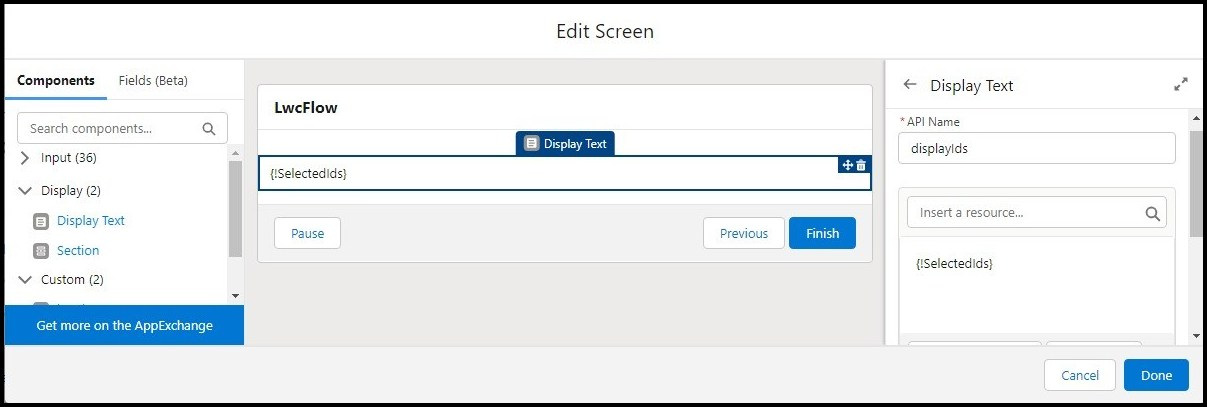
    • Under Components, select Display, Drag and drop Display Text onto the screen. fill the following details on Long Text.
      • API Name - displayIds
      • Insert a resource ... - {!SelectedIds} 
  • Click Done.
  • Connect Screen Element to Screen Element.
Screen Element

Flow Diagram 

Output 

If you have any questions you can reach out our Salesforce Consulting team here.

Thursday, 10 March 2022

How to retrieve all the files by traversing folder and sub folders on drag and drop using LWC


OUTLINE
While working on one of the requirements for a manufacturing sector solutions customer based out in Atlanta, Georgia, there was a requirement to traverse\navigate folder and sub folders to get all the files dropped by the user.

CHALLENGE Our main challenge was reading each entry in the directory (folder) or sub-directory (subfolder) dropped by the user to retrieve all the files within the directory (folder).

SOLUTION
  • To solve this issue, we've used JavaScript async function where each dataTransfer.item is converted to webkitGetAsEntry and checked whether it is a directory or a file.
  • If it is a fileEntry then it will be stored in array variable but if it is a directory then an async function named as traverseDirectory will be called and Directory entry will passed as a parameter.
  • In traverseDirectory function a reader variable is created and returned a promise, an anonymous function is associated with promise in which we created an array(local) variable and defined a function named as readEntries.
  • readEntries will traverse the directory.
    • if directory is empty then resolve will be return with all the promises.
    • if directory is not empty then further it will check for fileEntry.
      • If it is a fileEntry then it will be pushed into the array (local) variable.
      • If it is not a fileEntry then traverseDirectory will be called recursively and sub directory will be passed as a parameter.
  • And if, any error occurs then reject will be returned with an error.
Sample code is as below:

FileUploader.html

<template> 
    <lightning-card title="File Uploader"> 
        <div class="slds-align_absolute-center slds-p-bottom_medium"> 
            <form id="fileUploadForm"> 
                <div class="slds-form-element slds-align_absolute-center"> 
                    <span class="slds-form-element__label" id="file-selector-primary-label"></span> 
                    <div class="slds-form-element__control"> 
                        <div class="slds-file-selector slds-file-selector_files"> 
                            <div class="slds-file-selector__dropzone slds-has-drag-over slds-grid slds-wrap" 
                                ondrop={dropHandler} ondragover={dragOverHandler}> 
                                <div class="slds-m-around_xx-large"> 
                                    Drop File(s)/Folder 
                                </div> 
                            </div> 
                        </div> 
                    </div> 
                </div> 
            </form> 
        </div> 
        <template if:true={showFilePropertiesModal}> 
            <section role="dialog" tabindex="-1" aria-labelledby="modal-heading-01" aria-modal="true" 
                aria-describedby="modal-content-id-1" class="slds-modal slds-fade-in-open"> 
                <div class="slds-modal__container"> 
                    <header class="slds-modal__header"> 
                        <button class="slds-button slds-button_icon slds-modal__close slds-button_icon-inverse" 
                            title="Close" onclick={handleCloseModal}> 
                            <lightning-icon icon-name="utility:close" alternative-text="close" variant="inverse" 
                                size="small" onclick={handleCloseModal}></lightning-icon> 
                            <span class="slds-assistive-text">Close</span> 
                        </button> 
                        <h2 id="modal-heading-01" class="slds-text-heading_medium slds-hyphenate">Set File Properties 
                        </h2> 
                    </header> 
                    <div class="slds-modal__content slds-var-p-around_large" id="modal-content-id-1"> 
                        <div class="slds-card slds-var-p-around_large"> 
                                <template for:each={files} for:item="file"> 
                                    <div class="slds-grid slds-gutters" key={file.name} > 
                                        <div class='slds-col'> 
                                            <lightning-input label="File Name" type="text" value={file.name}> 
                                            </lightning-input> 
                                        </div> 
                                        <div class='slds-col'> 
                                            <lightning-combobox name="types" label="Document Type" 
                                                placeholder="Select File Type" options={options} 
                                                onchange={handleFileTypeSelectionChange} required> 
                                            </lightning-combobox> 
                                        </div> 
                                    </div> 
                                </template> 
                        </div> 
                    </div> 
                    <footer class="slds-modal__footer">
                        <button class="slds-button slds-button_neutral" onclick={handleCloseModal} 
                            title="Cancel">Cancel</button> 
                        <button class="slds-button slds-button_brand" onclick={handleFileUpload} 
                            title="Upload">Upload</button> 
                    </footer> 
                </div> 
            </section> 
            <div class="slds-backdrop slds-backdrop_open"></div> 
        </template> 
    </lightning-card> 
</template>


FileUploader.Js

import { LightningElement, api, track} from 'lwc'; 

export default class FileUploader extends LightningElement { 
    @api recordId; 
    @track showFilePropertiesModal=false; 
    @track showDocumentPropertiesForm=false; 
    @track files=[]; 
    @api options=[{label:'Print Card', value:'Print_Card'},{label:'Vertices Output', value:'Vertices_Output'}]; 

 
    dragOverHandler(event){ 
        event.preventDefault(); 
    } 

    dropHandler(event){ 
        event.stopPropagation(); 
        event.preventDefault(); 
        this.handleDroppedContent(event.dataTransfer.items); 

    } 

    async handleDroppedContent(items) { 
        var isDirectory = false; 
        var isFile = false; 

        for (let i = 0; i < items.length; i++) { 
            let item = items[i].webkitGetAsEntry(); 
            if (item.isDirectory) { 
                if (isFile) { 
                    this.files = []; 
                    console.log('File and Folder combination are not allowed to upload'); 
                    return; 
                } else if (isDirectory) { 
                    this.files = []; 
                    console.log('Multiple Folders are not allowed to upload'); 
                    return; 
                } 
                else { 
                    isDirectory = true; 
                } 
            } else if (item.isFile) { 
                if (isDirectory) { 
                    this.files = []; 
                    console.log('File and Folder combination are not allowed to upload'); 
                    return; 
                } else { 
                    isFile = true; 
                } 
            } 
        } 
        for (let i = 0; i < items.length; i++) { 
            let item = items[i].webkitGetAsEntry(); 
            if (item) { 
                if (item.isDirectory) { 
                    await this.traverseDirectory(item).then((result) => {                                                 
                        this.pushResultIntoFiles(result); 
                    }); 
                } else if (item.isFile) { 
                    this.files.push(item); 
                } 
            } 
        } 
        this.convertFileEntryToFile();         
        this.handleCachedFile(); 
    } 

    async traverseDirectory(entry) { 

        let _this = this; 
        const reader = entry.createReader(); 
        return new Promise((resolve, reject) => { 
            const iterationAttempts = []; 
            function readEntries() { 

                reader.readEntries((entries) => { 

                    if (!entries.length) { 
                        resolve(Promise.all(iterationAttempts)); 
                    } else { 
                        iterationAttempts.push(Promise.all(entries.map((ientry) => { 

                            if (ientry.isFile) { 
                                return ientry; 
                            } 
                            return _this.traverseDirectory(ientry); 
                        }))); 
                        readEntries(); 
                    } 
                }, error => reject(error)); 
            } 
            readEntries(); 
        }); 
    } 

    handleCachedFile(){ 
        if(this.files.length>0){ 
           this.showFilePropertiesModal=true; 
            this.showDocumentPropertiesForm=true; 
        } 
        else{ 
            console.log('Error'); 
        } 
    } 

    pushResultIntoFiles(result) { 
            result.forEach(element => { 
                if (element.isFile) { 
                    this.files.push(element); 
                } else { 
                    this.pushResultIntoFiles(element); 
                } 
            }); 
    } 

    convertFileEntryToFile() { 
        var promises = []; 
        var tempFile; 
        this.files.forEach(fileEntry => { 
            tempFile = new Promise(resolve => { 
                fileEntry.file(file => { 
                    resolve(file); 
                }); 
            }); 
            promises.push(tempFile); 
        }); 
        Promise.all(promises).then(file => { 
            this.files = []; 
            this.files = file; 
        }); 
    } 

    handleCloseModal(){ 
        this.files=[]; 
        this.showFilePropertiesModal=false; 
        this.showDocumentPropertiesForm=false; 
    } 

    handleFileUpload(){ 
        //Write your file upload code. 
    }            
} 
Output
CONCLUSION
By using promises and file reader effectively in LWC, we should be able to get all the files from directory and its sub-directories.

If you have any questions you can reach out our Salesforce Consulting team here.